⚡ Key Takeaways
- AI HTML generators dramatically cut development time — from days to hours — without sacrificing code quality.
- Manual coding still wins on ultra-custom, performance-critical projects, but carries a steep time cost.
- Canvas Builder combines AI-assisted scaffolding with clean, hand-editable HTML — giving you the best of both worlds.
- For most freelancers and agencies, an ai html generator paired with a solid template library is the fastest path to a polished deliverable.
- The right choice depends on project complexity, client budget, and how much control you need over the final output.
Every developer has been there: a client needs a polished website in two weeks, the budget is tight, and the brief covers a dozen feature requests. You open your code editor, stare at a blank file, and wonder whether to start from scratch or reach for a tool that can do the heavy lifting.
That tension is exactly what the rise of AI HTML generators and modern AI web design tools is meant to resolve. But “AI-assisted” covers a huge spectrum — from one-click page exporters to intelligent template builders that still respect your markup. In this comparison, we stack Canvas Builder’s approach against traditional manual coding so you can decide which workflow actually fits the way you work.
What Is an AI HTML Generator — and Why Does It Matter?
An ai html generator uses machine learning or intelligent automation to produce structured, styled HTML from a set of inputs — a prompt, a wireframe, a content brief, or a template selection. The output ranges from bare-bones markup to fully responsive, component-rich pages ready for a browser.
The “why it matters” part is simple: developer time is expensive and client timelines are short. According to multiple agency surveys, building a typical marketing website from scratch consumes 40–80 hours of billable work. An intelligent generator can compress that to under 10 hours for comparable complexity — not by cutting corners, but by automating the repetitive scaffolding work that doesn’t require human creativity.
That said, not all generators produce the same quality of code. Some output bloated, inline-heavy markup that’s painful to maintain. Others lean on JavaScript-heavy frameworks when plain HTML would serve better. Understanding the tradeoffs is what separates a good html generator comparison from a marketing brochure.
Manual Coding: Real Strengths, Real Limits
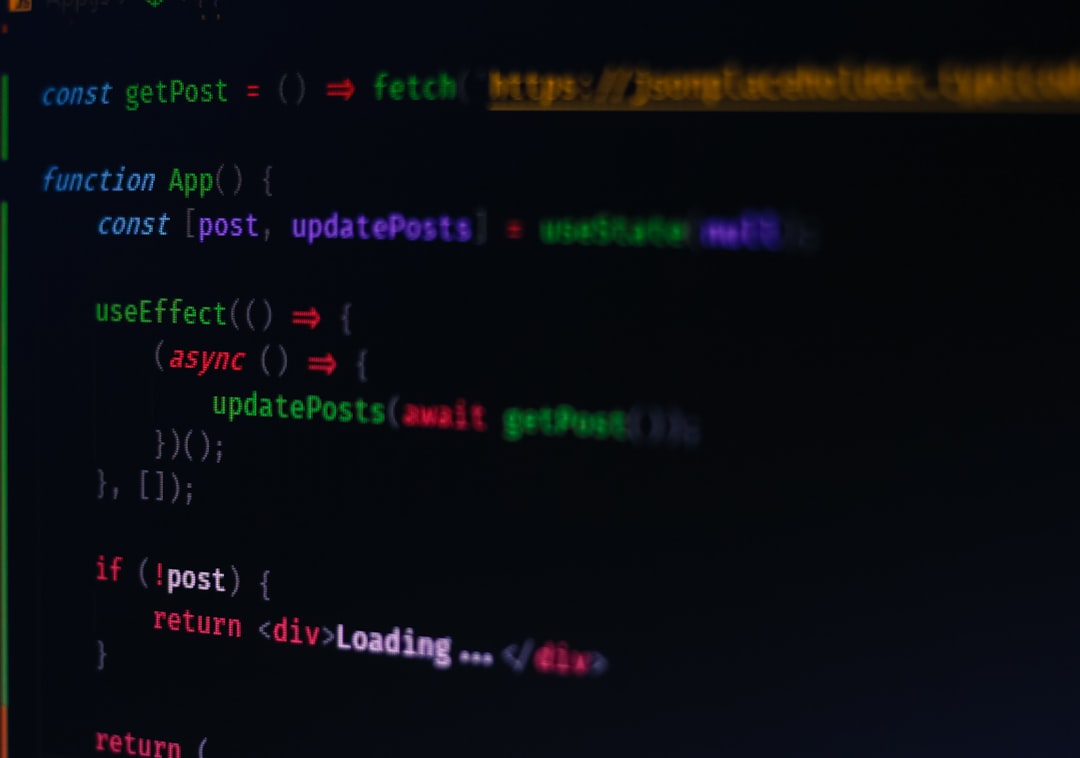
Manual coding isn’t dead — far from it. When you write every line yourself, you control everything: file size, dependency count, semantic structure, and accessibility. For performance-obsessed projects (think: sub-second load times on 3G), a hand-crafted page often outperforms any generated alternative.
Manual coding also shines when a project has genuinely unique interaction requirements — custom WebGL scenes, complex data visualizations, or tightly integrated back-end logic. No generator anticipates every edge case.
The limits, though, are real. Manual work scales poorly. A solo freelancer can’t hand-code twelve landing page variants for an A/B test in the same sprint. Junior developers make inconsistent decisions across components. And without a shared system, maintenance becomes archaeology — digging through files to figure out why a button is styled the way it is.
If you’re regularly delivering HTML templates to clients, you’ve probably already built mental shortcuts — snippets, starter files, preferred component patterns. That instinct toward systematization is exactly what a good AI tool formalizes. For a deeper look at that delivery workflow, The Freelancer’s Guide to Delivering HTML Templates to Clients covers it thoroughly.
How Canvas Builder Approaches AI HTML Generation
Canvas Builder isn’t a “describe your site and click generate” tool. Its philosophy is more deliberate: provide a rich, professionally designed HTML template library and layer AI-assisted tooling on top — so the output is always clean, maintainable, and genuinely yours to edit.
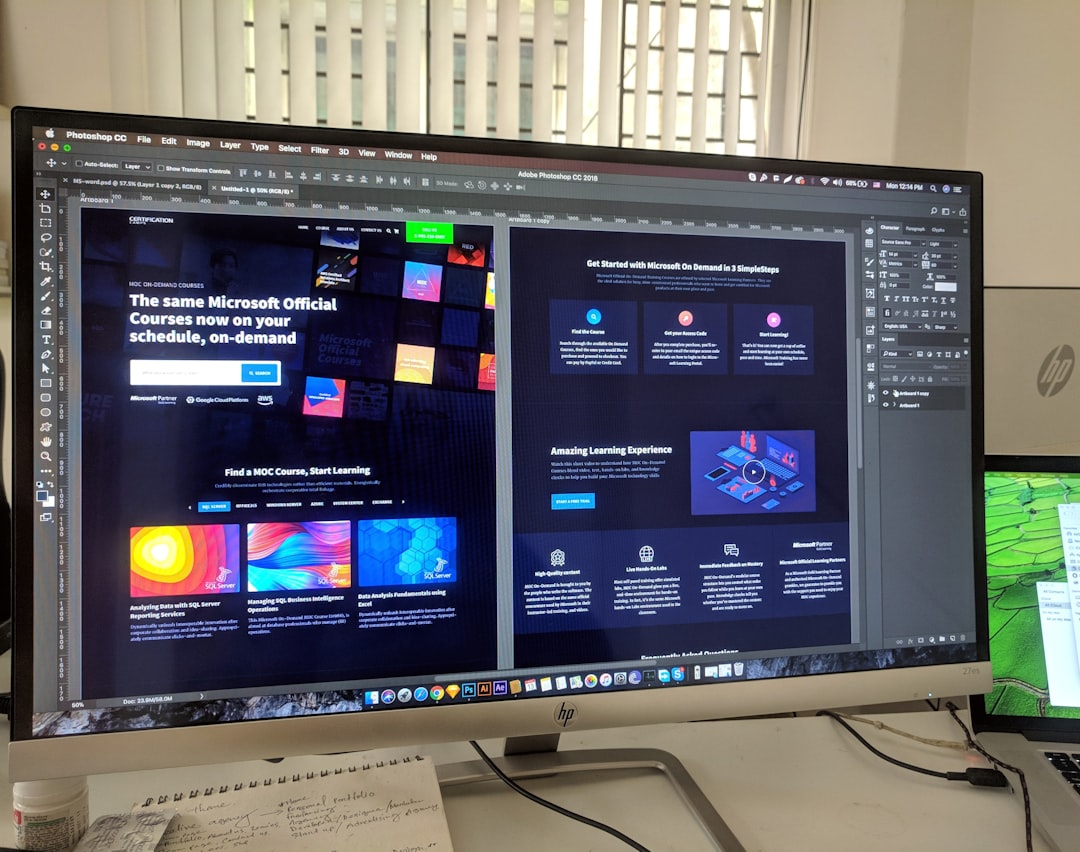
The core workflow looks like this: you pick a starting template that matches your project’s category (SaaS, e-commerce, portfolio, service business), swap content blocks using a visual interface, and export production-ready HTML. AI assistance surfaces in smart defaults — typography pairings, spacing scales, color contrast checkers — rather than in opaque black-box generation.
The result is code you can actually read. No mystery classes, no runtime dependencies to untangle. If you’ve ever tried to build an AI SaaS landing page with Canvas HTML Template, you’ll recognize this pattern: the scaffold is done for you, but every element is transparent and editable.
This approach also means Canvas works well at scale. Agencies running multiple client projects simultaneously can maintain brand consistency without duplicating effort — each project starts from the same quality baseline.
Side-by-Side Feature Comparison
Here’s how the two approaches stack up across the criteria that actually matter for professional web projects:
| Criteria | Manual Coding | Canvas Builder (AI-Assisted) |
|---|---|---|
| Time to first draft | 8–20+ hours | 1–3 hours |
| Code quality | Depends entirely on developer skill | Consistent, semantic, Bootstrap 5-based |
| Customization ceiling | Unlimited (you write everything) | Very high (full HTML/CSS access) |
| Maintenance ease | Low without a style guide | High — structured, documented components |
| Learning curve | High — requires deep HTML/CSS/JS knowledge | Low to moderate — template-based entry point |
| Scalability across projects | Poor without a shared component system | Strong — reuse components across clients |
| Cost efficiency | High hourly cost, low tool cost | Low tool cost, dramatically lower hourly cost |
| Dependency risk | None (you own everything) | Low — exports static HTML, no platform lock-in |
The dependency risk row deserves a closer look. Many AI web design tools generate output tied to a proprietary platform — if the service shuts down or raises prices, you’re stuck. Canvas Builder’s export model avoids this: you get static HTML files you own outright. That’s a significant advantage compared to some alternatives, as explored in the Canvas Builder vs Webflow HTML Template Advantage breakdown.
When to Choose Each Approach
Neither tool is universally superior. The honest answer depends on your situation:
Choose manual coding when:
- The project has highly custom interaction design that no template anticipates
- Performance requirements demand every kilobyte be justified
- You’re building a long-lived internal application where you control the full stack
- You have dedicated development time and an experienced team
Choose an AI HTML generator (like Canvas Builder) when:
- You’re building marketing sites, landing pages, or client-facing front-ends
- Timelines are tight and the client cares about the result, not the process
- You’re a freelancer or small agency managing multiple concurrent projects
- You want professional design quality without a dedicated designer on staff
- You need to hand off clean, editable files — not a locked CMS export
For most modern freelance and agency workflows, the AI-assisted path is the practical default. Manual coding then becomes a targeted intervention for the 20% of projects that genuinely need it — not the starting point for everything. This mirrors the broader shift described in AI Web Design in 2026: The Complete Guide for Freelancers and Agencies.
Getting the Most From Your AI HTML Tool
Switching to an AI-assisted workflow doesn’t mean surrendering craft — it means redirecting your craft toward higher-value decisions. Here are practices that consistently improve outcomes:
- Start with the right template category. Picking a template designed for your use case (SaaS vs. portfolio vs. e-commerce) cuts customization time in half. The structural decisions are already made correctly.
- Edit the HTML directly, not just through the visual UI. AI web design tools are fastest when you trust them for structure and override them in code for edge cases. Don’t fight the tool — complement it.
- Audit before delivery. AI-generated output still needs a human pass for accessibility, semantic correctness, and client-specific needs. Build this into your process — a structured pre-delivery checklist saves painful revisions.
- Keep a component library. As you customize templates, save your best variations. Over time, you’ll build a personal component system that makes each new project faster than the last.
- Don’t over-engineer the stack. If static HTML meets the client’s needs, ship static HTML. Resist the urge to add complexity just because you can.
Frequently Asked Questions
What is an AI HTML generator?
An AI HTML generator is a tool that uses automation or machine learning to produce HTML markup — sometimes from a text prompt, sometimes from a template selection or visual interface. The goal is to reduce the time spent on repetitive scaffolding so developers and designers can focus on decisions that require genuine judgment.
Is AI-generated HTML good enough for client projects?
It depends on the tool. Low-quality generators produce bloated or poorly structured markup. Canvas Builder, by contrast, generates clean Bootstrap 5-based HTML with semantic structure — the same quality you’d expect from an experienced front-end developer. Always review output before delivery, but for the majority of client projects, AI-assisted HTML is entirely production-ready.
Can I edit the HTML after generating it?
Yes — and you should. Canvas Builder exports standard HTML and CSS files that you own completely. There’s no proprietary runtime or platform dependency. Open them in any editor, modify freely, and deploy anywhere. This is one of the key differentiators from SaaS website builders that lock you into their ecosystem.
How does Canvas Builder compare to other AI web design tools?
Most AI web design tools fall into two camps: fully automated generators (fast but inflexible) and visual website builders (flexible but platform-locked). Canvas Builder occupies a middle ground — it uses template-based AI assistance to give you a high-quality starting point while preserving full code ownership and customization freedom. It’s designed for professionals who need both speed and control.
Do I need to know how to code to use an AI HTML generator?
Not necessarily, but some HTML/CSS literacy will help you get better results. Canvas Builder is approachable for designers with basic markup knowledge, and more powerful for developers who want to dig into the code. You don’t need to be an expert to get started — but the more you understand the output, the more you can shape it to your exact needs.
If you’re working with the Canvas HTML Template and want to generate production-ready layouts faster, try Canvas Builder free and see how much time you save on every project.
Where the Alternatives Win
Manual coding genuinely beats Canvas Builder on projects demanding sub-second load times, custom WebGL scenes, complex data visualizations, or tightly integrated back-end logic — situations where no template library can anticipate every requirement. Manual coding also carries zero tool dependency and no platform risk whatsoever, since every line is yours from the start. If a project budget is too constrained for any tooling cost, or if a developer needs unlimited structural control over semantic markup and dependency count, hand-writing the code remains the stronger choice.
The Verdict: Who Should Choose What
Canvas Builder is the right fit for freelancers and agencies regularly delivering marketing sites, landing pages, or SaaS templates under tight timelines — especially when consistency across multiple client projects matters more than pixel-level custom architecture. Manual coding is genuinely the better option for performance-critical builds, unique interaction requirements like custom visualizations or complex back-end integration, or any project where the developer’s deep expertise is the actual deliverable and scaffolding automation adds no real value.