Category: Design Guides

  • Grid Systems Explained: How to Create Visual Order in Web Layouts

    Grid Systems Explained: How to Create Visual Order in Web Layouts

    A well-structured grid is the invisible scaffolding that separates polished, professional websites from layouts that feel arbitrary and hard to navigate. If your pages look inconsistent or elements never quite align, the problem is almost always a missing or poorly applied grid system.

    Key Takeaways

    • Grid systems create visual rhythm and alignment that guide users through a page without conscious effort.
    • Bootstrap 5’s 12-column grid, used in the Canvas HTML Template, gives you a robust, responsive foundation without writing layout CSS from scratch.
    • CSS Grid and Bootstrap Grid serve different purposes — understanding when to use each prevents over-engineering your layouts.
    • Consistent gutters, breakpoints, and column spans are the three levers that control how orderly your layout feels across all screen sizes.

    What Is a Grid System and Why Does It Matter

    A web design grid system is a series of intersecting vertical columns and horizontal rows that define where elements are placed on a page. Rather than positioning things by eye, designers and developers commit to a fixed set of columns — typically 12 — and assign each element a span that fits within that structure.

    The practical benefit is consistency. When every section, card, and image aligns to the same underlying grid, users experience a layout that feels considered and trustworthy. Research into visual perception consistently shows that aligned layouts reduce cognitive load, keeping visitors focused on content rather than trying to parse a chaotic arrangement of elements.

    In 2025, almost every serious HTML template — including Canvas — is built on a 12-column Bootstrap 5 grid precisely because 12 divides evenly into halves, thirds, quarters, and sixths. That mathematical flexibility is why 12 columns have become the industry standard for layout design.

    black and white square illustration
    Photo by Ryunosuke Kikuno on Unsplash

    The 12-Column Bootstrap Grid in Practice

    Bootstrap 5’s grid works through a container, row, and column hierarchy. Columns are assigned classes that control how many of the 12 columns they occupy at each breakpoint. Here is a basic three-column feature section:

    <div class="container">
      <div class="row g-4">
        <div class="col-12 col-md-4">
          <div class="feature-card p-4">
            <h3>Feature One</h3>
            <p>Description of this feature goes here.</p>
          </div>
        </div>
        <div class="col-12 col-md-4">
          <div class="feature-card p-4">
            <h3>Feature Two</h3>
            <p>Description of this feature goes here.</p>
          </div>
        </div>
        <div class="col-12 col-md-4">
          <div class="feature-card p-4">
            <h3>Feature Three</h3>
            <p>Description of this feature goes here.</p>
          </div>
        </div>
      </div>
    </div>

    On mobile, each column spans 12 (full width). At the md breakpoint (768px and above), each takes 4 columns — one third of the row. The g-4 class sets consistent gutters between columns without requiring custom margin rules. Because Canvas is built on Bootstrap 5 and bundles it internally, this markup works immediately without loading any third-party CSS.

    For a deeper comparison of when Bootstrap Grid outperforms native CSS Grid and vice versa, the post on CSS Grid vs Bootstrap Grid covers the trade-offs in detail.

    Grid Anatomy: Columns, Gutters, and Breakpoints

    Three variables define how a grid behaves in practice:

    1. Columns — the vertical divisions of your layout. In a 12-column grid, a sidebar typically spans 3 or 4 columns, leaving 8 or 9 for main content.
    2. Gutters — the horizontal and vertical space between columns. Bootstrap 5 uses the g-* utility classes (g-1 through g-5) to control gutter size consistently.
    3. Breakpoints — the screen widths at which column spans change. Bootstrap 5 defines six: xs, sm, md, lg, xl, and xxl.

    A common mistake in HTML template grid work is applying the same column span at every breakpoint. A four-column card grid that looks great on desktop becomes a two-column grid on tablet and a single column on mobile — achieved simply by stacking responsive classes: col-12 col-sm-6 col-lg-3.

    <div class="row g-3">
      <div class="col-12 col-sm-6 col-lg-3">Card 1</div>
      <div class="col-12 col-sm-6 col-lg-3">Card 2</div>
      <div class="col-12 col-sm-6 col-lg-3">Card 3</div>
      <div class="col-12 col-sm-6 col-lg-3">Card 4</div>
    </div>
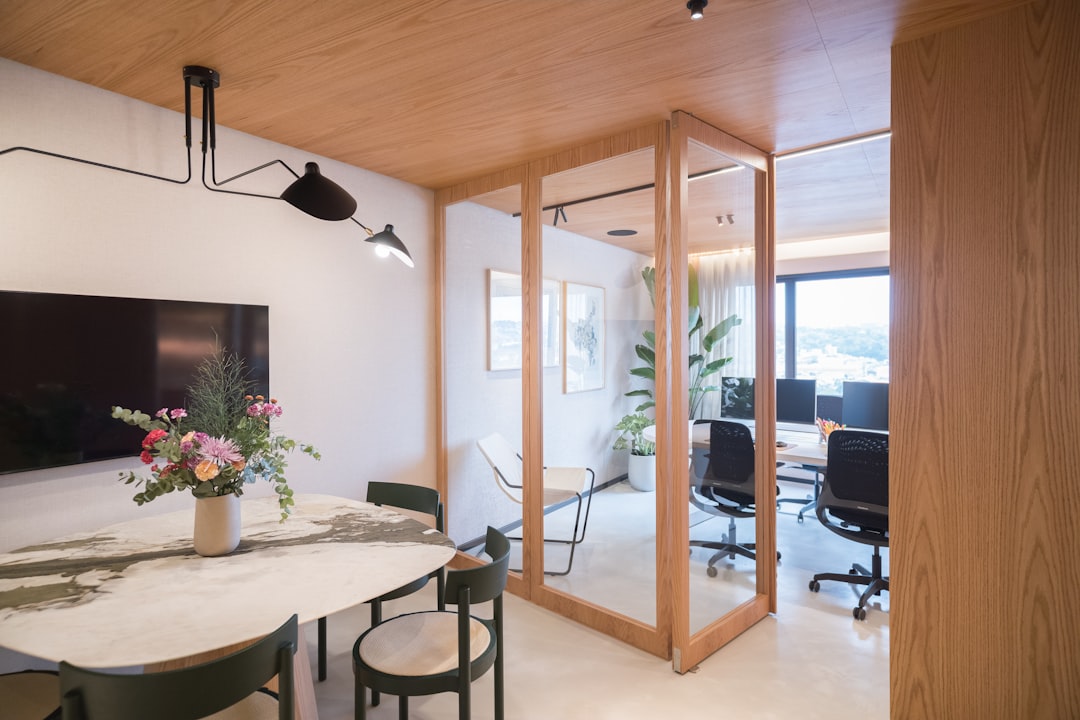
    Modern office interior with meeting area and workstations.
    Photo by Caroline Badran on Unsplash

    Using CSS Grid for More Complex Layout Structures

    Bootstrap Grid excels at component-level layout — rows of cards, sidebar plus content, stacked sections. For asymmetric or overlapping layouts, native CSS Grid gives you more precise placement control. You can combine both: Bootstrap Grid for the macro page structure, CSS Grid for a specific section that needs non-uniform cell sizing.

    .editorial-grid {
      display: grid;
      grid-template-columns: 2fr 1fr 1fr;
      grid-template-rows: auto auto;
      gap: 1.5rem;
    }
    
    .editorial-grid .featured {
      grid-column: 1 / 2;
      grid-row: 1 / 3;
    }
    
    @media (max-width: 767px) {
      .editorial-grid {
        grid-template-columns: 1fr;
      }
      .editorial-grid .featured {
        grid-column: 1;
        grid-row: auto;
      }
    }

    This pattern places a featured article in the left two-thirds of a row while two smaller items stack in the right third — an editorial layout that is impossible to achieve cleanly with Bootstrap columns alone. To calculate spacing values in rem rather than px for consistent scaling, the px to rem converter is a practical utility for this kind of work.

    Applying Grid Systems Inside the Canvas HTML Template

    Canvas organises its demo pages into section blocks, and every section already uses the Bootstrap 5 container and row structure. When you build or customise a Canvas layout, you are working within this existing grid — which means your job is choosing the right column spans rather than rebuilding the grid from scratch.

    A typical Canvas section with a text block and an image side by side looks like this:

    <section class="py-6">
      <div class="container">
        <div class="row align-items-center gx-5">
          <div class="col-12 col-lg-6">
            <h2>Why Our Approach Works</h2>
            <p>Supporting copy that explains the value proposition clearly.</p>
            <a href="#" class="btn btn-primary">Learn More</a>
          </div>
          <div class="col-12 col-lg-6">
            <img src="images/feature.jpg" alt="Feature illustration" class="img-fluid rounded">
          </div>
        </div>
      </div>
    </section>

    The gx-5 class controls horizontal gutter spacing between the two columns, while align-items-center ensures the text and image align vertically at their midpoints. For teams building multiple sections quickly, Canvas Builder generates this kind of layout code from a plain-language prompt, removing the repetitive work of setting up containers and rows by hand. You can find a full walkthrough of that process in the Canvas Builder user guide.

    Grid Design Principles That Create Real Visual Order

    Technical correctness is not enough. A layout can use a 12-column grid perfectly and still feel cluttered if underlying design principles are ignored. These four rules make the difference:

    • Consistent vertical rhythm — use a base spacing unit (typically 8px or 0.5rem) and apply padding and margin in multiples of it. Canvas’s spacing utilities follow Bootstrap 5’s spacing scale, which is built on this principle.
    • Hierarchical column weighting — primary content should occupy more columns than secondary content. A 7/5 or 8/4 split signals to users which side deserves attention first.
    • Intentional whitespace — empty columns are not wasted space. An offset class like offset-lg-1 on a centred content block adds breathing room that makes text more readable.
    • Alignment continuity across sections — elements in consecutive sections should share the same left edge where possible. This creates a vertical alignment axis that the eye follows down the page, a fundamental principle behind any credible layout design approach.

    These principles apply equally to landing pages, pricing tables, and full multi-page sites. For context on how grid thinking applies specifically to pricing layouts, the post on Canvas pricing table design shows how column structure affects conversion.

    Frequently Asked Questions

    What is the difference between a web design grid system and CSS Grid?

    A web design grid system is a design concept — a set of columns and rows that govern where elements are placed. CSS Grid is a specific CSS layout module that implements that concept in code. You can also implement a grid system using Bootstrap’s column classes, flexbox, or even manual positioning. CSS Grid is simply the most powerful native tool for complex, two-dimensional layouts.

    How many columns should a web layout grid have?

    Twelve columns is the standard for most web layouts because 12 divides evenly into halves, thirds, quarters, and sixths. Some design systems use 16 columns for wider screens where more granular control is needed, but for the majority of HTML template work, a 12-column grid covers every common layout pattern.

    Does the Canvas HTML Template use Bootstrap 5 grid classes?

    Yes. Canvas is built on Bootstrap 5, which means all standard Bootstrap grid classes — container, row, col-, g-, offset-* — work natively throughout the template. You should never load Bootstrap from a CDN separately, as Canvas bundles Bootstrap 5 internally and a second load will cause conflicts.

    When should I use CSS Grid instead of Bootstrap Grid?

    Use Bootstrap Grid for standard section layouts — rows of equal cards, two-column text-plus-image blocks, sidebar layouts. Switch to CSS Grid when you need overlapping elements, non-uniform cell sizes, or named grid areas that would require too many Bootstrap utility overrides to replicate. The two approaches can coexist within the same page without conflict.

    How do gutters affect layout design in Bootstrap 5?

    Gutters control the space between columns and rows. Bootstrap 5 uses the g- class on the row element (g-1 to g-5), with gx- for horizontal gutters only and gy-* for vertical gutters only. Consistent gutter sizing is one of the quickest ways to make a layout feel more refined, as it creates predictable visual rhythm between all grid-placed elements.

    If you’re working with the Canvas HTML Template and want to generate production-ready layouts faster, try Canvas Builder free and see how much time you save on every project.
  • Footer Design Best Practices: What to Include and What to Cut

    Footer Design Best Practices: What to Include and What to Cut

    Your footer is the last thing a visitor sees before they leave — and most designers treat it as an afterthought. Done well, a footer reinforces trust, surfaces critical navigation, and can even convert hesitant users who scrolled all the way to the bottom looking for a reason to stay.

    Key Takeaways

    • A well-structured footer improves navigation, builds trust, and supports SEO — it is not just a legal requirement box.
    • The most effective footer layouts use a clear column grid, logical link groupings, and a single secondary call-to-action.
    • Clutter is the primary footer killer — cut anything that does not serve a clear user or business purpose.
    • Bootstrap 5 grid classes make it straightforward to build a responsive, multi-column footer that collapses cleanly on mobile.

    Scroll-depth studies consistently show that a meaningful percentage of visitors reach the footer — particularly on landing pages, blog posts, and service pages where users are actively researching. These are high-intent visitors. They have read enough to want more information, and a poorly designed footer sends them away empty-handed.

    From an SEO perspective, footer links carry internal link equity. Every page on your site inherits a small share of authority from whatever is linked in the footer, so linking to your most important service or product pages there is a deliberate, low-effort win. In 2025, Google’s crawlers also use footer structure as a signal of site architecture quality — a chaotic footer with 60 unorganised links is a red flag.

    For projects built on the Canvas HTML Template, the footer is a standalone section block you can compose from pre-built column layouts — making it easier than ever to apply best practices without starting from scratch.

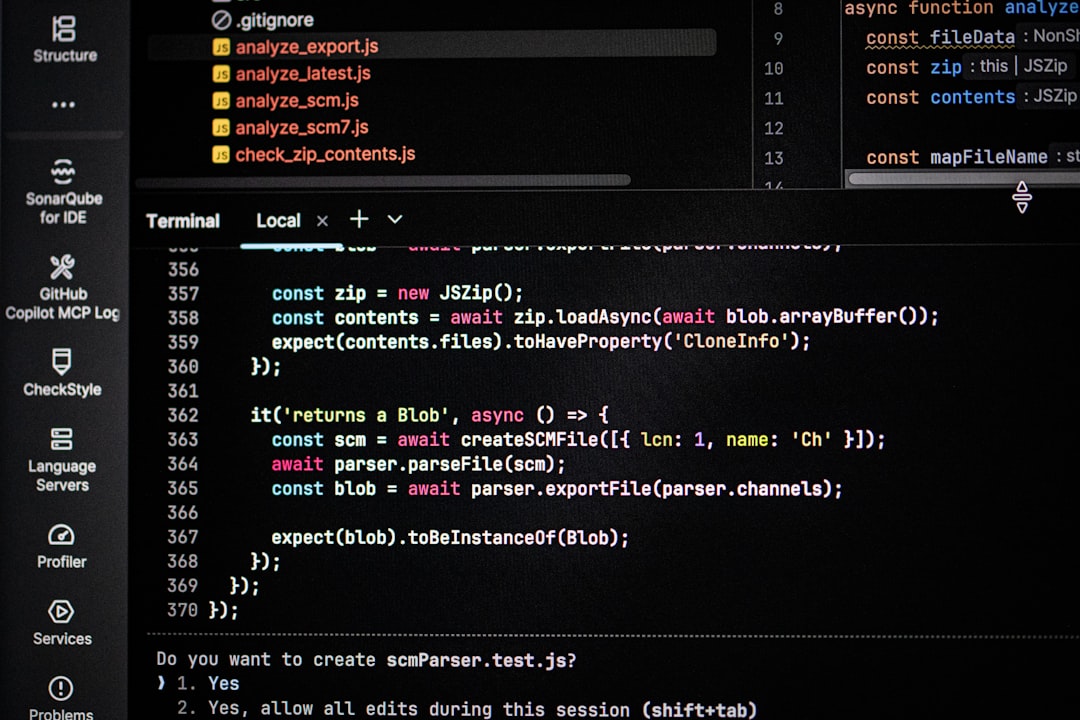
    Computer screen displaying code and terminal output
    Photo by Bernd 📷 Dittrich on Unsplash

    There is a core set of footer elements that users have been conditioned to look for. Missing any of them creates friction and erodes trust. These are non-negotiable regardless of site type:

    • Logo or brand name — anchors the footer visually and reinforces brand identity at the close of every page.
    • Navigation links grouped by category — typically Company, Services/Products, Resources, and Legal. Grouping reduces cognitive load.
    • Contact information — at minimum an email address or a link to a contact page. For local businesses, include a physical address.
    • Legal links — Privacy Policy, Terms of Service, and Cookie Policy. These are legal requirements in most jurisdictions and should never be buried or removed.
    • Copyright line — simple, small, always present.
    • Social media links — only include platforms you actively maintain. A ghost Twitter/X profile linked from your footer does more harm than good.

    If your site collects email addresses, a newsletter signup field in the footer is one of the highest-converting placements on any website. Users who reach the footer are already engaged — a single-field email form with a clear value proposition captures that intent at exactly the right moment.

    Overcrowded footers are the norm, not the exception. The instinct to include everything “just in case” results in a wall of links that users ignore entirely. Apply the same editorial discipline here as you would to whitespace decisions throughout your layout — removing elements is a design choice, not laziness.

    Cut these if they appear in your current footer:

    • Duplicate primary navigation — repeating your main nav in the footer is redundant on most sites. Use the footer for secondary and utility links instead.
    • Tag clouds or category lists — these are a relic of early-2000s blog design and add visual noise without meaningful navigation value.
    • Recent posts widgets — unless your site is primarily a publication, recent posts in the footer fragment attention from your conversion goals.
    • Excessive social proof badges — one or two trust logos are fine; eight accreditation badges stacked vertically are not.
    • Auto-playing media or animations — footers should be calm, not distracting.
    • Links to inactive or outdated pages — audit your footer links annually and remove anything that 404s or leads to stale content.
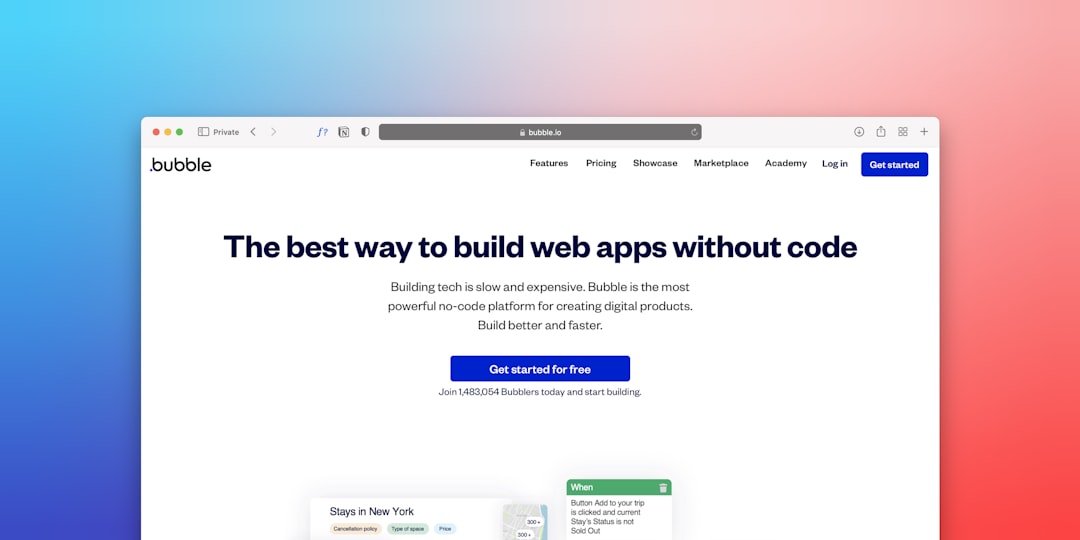
    the best way to build web apps without code
    Photo by Team Nocoloco on Unsplash

    A standard four-column footer layout works well for most business websites. Using Bootstrap 5’s grid system — which Canvas includes bundled — you can build a footer that stacks to a single column on mobile without any custom Bootstrap breakpoint tester logic.

    <footer id="footer">
      <div class="container">
        <div class="footer-widgets-wrap py-5">
          <div class="row col-mb-50">
    
            <!-- Brand + description -->
            <div class="col-lg-4 col-md-6">
              <div class="widget">
                <img src="images/logo.png" alt="Brand Logo" class="mb-3" style="height: var(--cnvs-logo-height, 36px);">
                <p class="text-muted">We help growing businesses build better digital products. Based in London, working globally.</p>
              </div>
            </div>
    
            <!-- Company links -->
            <div class="col-lg-2 col-md-3 col-6">
              <div class="widget widget_links">
                <h4>Company</h4>
                <ul>
                  <li><a href="/about">About</a></li>
                  <li><a href="/careers">Careers</a></li>
                  <li><a href="/blog">Blog</a></li>
                  <li><a href="/contact">Contact</a></li>
                </ul>
              </div>
            </div>
    
            <!-- Services links -->
            <div class="col-lg-2 col-md-3 col-6">
              <div class="widget widget_links">
                <h4>Services</h4>
                <ul>
                  <li><a href="/web-design">Web Design</a></li>
                  <li><a href="/development">Development</a></li>
                  <li><a href="/seo">SEO</a></li>
                  <li><a href="/branding">Branding</a></li>
                </ul>
              </div>
            </div>
    
            <!-- Newsletter signup -->
            <div class="col-lg-4 col-md-6">
              <div class="widget">
                <h4>Stay in the loop</h4>
                <p class="text-muted">Monthly tips on design, development, and growth.</p>
                <form class="d-flex gap-2">
                  <input type="email" class="form-control" placeholder="Your email address">
                  <button type="submit" class="btn btn-primary">Join</button>
                </form>
              </div>
            </div>
    
          </div>
        </div>
      </div>
    
      <!-- Footer bottom bar -->
      <div id="copyrights">
        <div class="container">
          <div class="row justify-content-between align-items-center">
            <div class="col-md-6 text-center text-md-start">
              <p class="mb-0">&copy; 2025 YourBrand. All rights reserved.</p>
            </div>
            <div class="col-md-6 text-center text-md-end mt-2 mt-md-0">
              <a href="/privacy">Privacy Policy</a> &nbsp;&bull;&nbsp;
              <a href="/terms">Terms of Service</a>
            </div>
          </div>
        </div>
      </div>
    </footer>

    This structure follows Canvas’s native footer conventions. The logo height uses --cnvs-logo-height so it respects your global Canvas theme variable rather than hardcoding a pixel value that might conflict with sticky header settings.

    Most footer designs default to a dark background with light text — this works because it creates a clear visual boundary between the page body and the footer, signalling “end of content” to the user. It also lets legal and secondary links recede without competing with main content.

    When theming a Canvas footer, set the background via a scoped CSS override rather than inline styles, using Canvas’s own variable system:

    #footer {
      --cnvs-header-bg: #1a1a2e;
      background-color: #1a1a2e;
      color: rgba(255, 255, 255, 0.75);
    }
    
    #footer a {
      color: rgba(255, 255, 255, 0.6);
      transition: color 0.2s ease;
    }
    
    #footer a:hover {
      color: var(--cnvs-themecolor);
      text-decoration: none;
    }

    Keep footer body text at 14px (0.875rem) or smaller — it reads as secondary without being inaccessible. Section headings within the footer should be 13–14px uppercase with letter-spacing applied, which is a pattern used widely across professional web design in 2025 because it creates hierarchy without requiring large font sizes. You can use the px to rem converter to maintain consistent relative sizing throughout your footer typography.

    The footer is an appropriate place for a single, low-pressure call-to-action. Unlike hero section CTAs, footer CTAs target users who need more convincing — so softer language works better here. “Start a free trial” is a hero CTA; “See how it works” or “Book a 15-minute call” is a footer CTA. For more on writing effective calls-to-action at different stages of the page, the principles covered in CTA button design tips apply directly to footer button choices as well.

    Trust signals that belong in the footer include:

    • Security badges (SSL, payment processor logos) — essential for e-commerce
    • One or two accreditation logos if your industry requires them
    • A brief one-line mission statement or tagline beneath the logo
    • GDPR or CCPA compliance notice if applicable

    What does not belong: star ratings, testimonials carousels, or animated counters. Save those for above-the-fold sections where they carry conversion weight. The footer should communicate quiet confidence, not shout for attention.

    Frequently Asked Questions

    How many links should a website footer contain?

    There is no universal rule, but research suggests users engage most with footers containing 10–20 well-organised links. More than 30 links typically results in decision paralysis and none being clicked. Group links into clear categories and prioritise pages that convert — service pages, contact, and your most-read resources.

    Should the footer repeat the main navigation?

    Generally no. The footer should complement the main navigation, not duplicate it. Use the footer for secondary pages (About, Legal, Careers), utility links (Login, Status, API Docs), and grouped service categories that would clutter the primary menu.

    Is a dark footer always better than a light one?

    Dark footers are more common because they create a clear visual separation from page content, but a light footer can work well on minimal or editorial sites where a hard boundary would feel jarring. The key principle is contrast — the footer must visually distinguish itself from the last section of the page, whatever colour scheme you choose.

    How do I set footer background colour in the Canvas HTML Template without breaking other styles?

    Target the #footer ID with a scoped background-color rule in your custom CSS file. Avoid using inline styles or overriding Bootstrap utility classes globally. If you are using Canvas’s dark footer variant, add the dark class to the footer element and set the background via your CSS override as shown in the code example above.

    Does footer content affect SEO?

    Yes, in two ways. First, links in the footer pass internal link equity to the pages they point to, so linking your most important service and product pages from the footer reinforces their authority. Second, footer text is indexed — thin, keyword-stuffed footer paragraphs are a known negative signal, so keep any descriptive text in the footer genuinely useful and brief.

    If you’re working with the Canvas HTML Template and want to generate production-ready layouts faster, try Canvas Builder free and see how much time you save on every project.

  • CTA Button Design: Science-Backed Tips That Drive Clicks

    CTA Button Design: Science-Backed Tips That Drive Clicks

    A button that blends into the page is a conversion killer, yet the gap between a mediocre CTA and a high-performing one often comes down to a handful of deliberate, testable design decisions. Understanding the science behind why users click — and translating that into clean, production-ready HTML — is one of the highest-leverage skills in web design.

    Key Takeaways

    • CTA button colour, size, and copy each independently affect click-through rates — optimising all three compounds the gains.
    • Contrast against the surrounding page background matters more than the specific colour you choose for your button.
    • Microcopy — the small words on and around the button — reduces friction and increases perceived safety for the user.
    • Spacing, placement, and visual hierarchy are structural decisions that should be made before you write a single line of button CSS.

    Why CTA Button Design Is a Science, Not a Stylistic Choice

    Conversion-rate researchers have been running controlled button experiments for over two decades. What has emerged is a body of evidence that treats the CTA button not as decoration but as a functional object with measurable psychological properties. Colour affects emotional state. Size signals importance. Label wording either reduces or amplifies cognitive load. These are not opinions — they are repeatable findings from A/B testing at scale.

    For developers and designers working with the Canvas HTML Template, this matters because Canvas ships with Bootstrap 5’s utility system, meaning you can apply evidence-backed button patterns directly using existing classes — no custom framework required. The challenge is knowing which patterns to apply and why.

    a close up of a black and red sign
    Photo by Afif Ramdhasuma on Unsplash

    Colour, Contrast, and the Attention Economy

    The most important visual property of any CTA button design is contrast — not just colour. A green button on a green background will be ignored. The same green button on a dark navy background will demand attention. Research from the Nielsen Norman Group consistently shows that users scan pages in F-patterns and Z-patterns, meaning your button must interrupt the scan path visually to get noticed.

    In Canvas, your primary brand colour is set via the --cnvs-themecolor CSS variables generator. Rather than fighting that value, build your CTA contrast around it:

    :root {
      --cnvs-themecolor: #e84545;
    }
    
    .btn-cta-primary {
      background-color: var(--cnvs-themecolor);
      color: #ffffff;
      border: none;
      padding: 14px 36px;
      font-family: var(--cnvs-primary-font);
      font-size: 1rem;
      font-weight: 700;
      border-radius: 4px;
      transition: opacity 0.2s ease;
    }
    
    .btn-cta-primary:hover {
      opacity: 0.88;
      color: #ffffff;
    }

    If your hero section background is light, use a saturated, dark-valued button colour. If your section is dark — as many Canvas hero sections are — use a high-luminance button like white or a bright accent. Avoid grey buttons entirely for primary actions; users interpret grey as disabled.

    Button Size and Tap-Target Guidelines

    Google’s Material Design guidelines specify a minimum tap target of 48×48 pixels for touchscreen interactions. Apple’s Human Interface Guidelines recommend a minimum of 44×44 points. In 2025, with mobile traffic exceeding 60% on most sites, a button that is comfortable to tap is not optional — it is a baseline requirement.

    Bootstrap 5, which Canvas bundles, provides .btn-lg and .btn-sm modifiers. For primary CTAs above the fold, always use at minimum the default .btn sizing, and prefer .btn-lg on mobile viewports:

    <div class="d-grid d-sm-block">
      <a href="/signup" class="btn btn-lg btn-danger fw-bold px-5 py-3">
        Start Your Free Trial
      </a>
    </div>

    The d-grid d-sm-block pattern makes the button full-width on mobile (easier to tap) and inline on desktop. This single pattern alone can measurably lift mobile conversion rates. For posts exploring conversion-focused layout decisions in depth, the guide on SaaS website design for B2B homepages covers how button placement interacts with the surrounding page structure.

    Pile of dry autumn leaves with one bright yellow leaf.
    Photo by sina rezakhani on Unsplash

    Writing Button Copy That Actually Converts

    Button labels are the most underestimated lever in conversion design. Generic labels like “Submit”, “Click Here”, or “Learn More” tell the user nothing about what happens next. Specificity reduces uncertainty, and reducing uncertainty removes a major barrier to clicking.

    Apply these principles to your label writing:

    1. First-person framing: “Start My Free Trial” outperforms “Start Your Free Trial” in the majority of tests because it removes psychological distance.
    2. Outcome-first language: Lead with the result the user wants, not the action you want them to take. “Get Instant Access” beats “Register Now”.
    3. Urgency without dishonesty: “Join 12,000 users today” is more credible than “Limited time only!” — and specificity builds trust.
    4. Microcopy beneath the button: A single line below a payment CTA — such as “No credit card required. Cancel anytime.” — can recover a significant percentage of users who hesitate at the last moment.
    <div class="text-center">
      <a href="/signup" class="btn btn-lg btn-primary fw-bold px-5 py-3">
        Start My Free Trial
      </a>
      <p class="text-muted small mt-2 mb-0">No credit card required. Cancel anytime.</p>
    </div>

    This pattern is especially effective on webinar registration pages and app download landing pages where hesitation points are predictable and addressable with a single line of reassurance copy.

    Placement, Visual Hierarchy, and Whitespace

    Even a perfectly designed button will underperform if it is buried. Visual hierarchy determines where the eye lands first, and your primary CTA should always sit at the apex of that hierarchy on any given section. For Canvas layouts, this typically means placing the primary CTA inside a hero section’s .hero-caption container, above the fold on desktop, and following it with a secondary ghost-style button if a soft option is needed:

    <div class="d-flex flex-column flex-sm-row gap-3 justify-content-center">
      <a href="/get-started" class="btn btn-lg btn-primary fw-bold px-5">
        Get Started Free
      </a>
      <a href="/how-it-works" class="btn btn-lg btn-outline-light px-5">
        See How It Works
      </a>
    </div>

    Surround your CTA with adequate whitespace. Crowding a button with competing elements reduces its visual weight and lowers click rates. A rule of thumb: the button’s surrounding padding should be at least equal to its own height on all sides. For a deeper look at how spacing decisions affect conversion throughout a page, the post on whitespace in web design is worth reading alongside this guide.

    Testing and Iterating Your HTML Template CTA

    No single design choice is universally optimal. What works for a SaaS pricing table will not necessarily work for an e-commerce checkout. The practical implication is that your HTML template CTA should be structured for easy variation — clean, semantic, class-based styling that can be swapped during A/B tests without touching layout markup.

    In Canvas, the cleanest approach is to define CTA variants as modifier classes scoped to a single stylesheet block:

    .btn-cta-a {
      background-color: var(--cnvs-themecolor);
      color: #fff;
      padding: 14px 40px;
      border-radius: 4px;
      font-weight: 700;
    }
    
    .btn-cta-b {
      background-color: #1a1a2e;
      color: #fff;
      padding: 14px 40px;
      border-radius: 40px;
      font-weight: 700;
      letter-spacing: 0.03em;
    }

    Switching between .btn-cta-a and .btn-cta-b in your test requires a one-character class name change, leaving the HTML structure intact. Track clicks via your analytics platform of choice, run each variant for a statistically significant sample size (typically 1,000+ unique visitors per variant), and let data — not preference — decide the winner.

    Frequently Asked Questions

    What is the best colour for a CTA button?

    There is no universally best colour. The most important factor is contrast against the surrounding section background. Red, orange, and green buttons are frequently cited in conversion literature, but their effectiveness depends entirely on the page context. Test your highest-contrast option against your second choice before drawing conclusions.

    How many CTA buttons should appear on a single page?

    Each page should have one primary CTA — the single most important action you want the user to take. Secondary CTAs (soft options like “Learn More” or “Watch a Demo”) can appear alongside it, styled as outline or ghost buttons to maintain clear visual hierarchy. Avoid placing two equal-weight primary buttons in the same viewport.

    Does button shape affect conversion rates?

    Research findings on rounded versus square corners are mixed, but slightly rounded corners (border-radius of 4px–8px) tend to perform well across industries. Pill-shaped buttons (fully rounded) can test well for consumer-facing products but may feel informal in enterprise or professional service contexts. Shape should match your brand tone, then be tested.

    How do I customise CTA button styles in the Canvas HTML Template without breaking the template?

    The safest approach is to add a custom modifier class to your button element and define all overrides in a separate custom stylesheet loaded after Canvas’s style.css. Avoid editing style.css directly. Use the --cnvs-themecolor CSS variable for colour values so your changes stay consistent with the rest of the template’s colour system.

    Should the CTA button text be sentence case or title case?

    Sentence case (“Get started free”) reads slightly faster due to familiarity from body text, while title case (“Get Started Free”) can feel more formal and badge-like. Either can perform well; the more impactful variable is the specificity and clarity of the label itself. Test copy changes before testing case changes — label wording typically has a larger effect size.

    If you’re working with the Canvas HTML Template and want to generate production-ready layouts faster, try Canvas Builder free and see how much time you save on every project.

  • Whitespace in Web Design: Why Less Content Means More Impact

    Whitespace in Web Design: Why Less Content Means More Impact

    Most designers know they should use whitespace, but few treat it as a deliberate design decision — and that gap is exactly where layouts start to feel cluttered, hard to read, and unconvincing. Negative space is not empty space; it is the structural element that makes everything else work.

    Key Takeaways

    • Whitespace improves readability, visual hierarchy, and conversion rates — it is an active design tool, not wasted space.
    • Micro-whitespace (spacing between lines, letters, and small elements) is just as important as macro-whitespace (padding between sections).
    • Bootstrap 5 spacing utilities and CSS custom properties make implementing consistent negative space straightforward in any Canvas-based project.
    • Reducing content density on a page almost always increases user engagement and the perceived quality of a brand.

    What Whitespace Actually Means in Web Design

    Whitespace — also called negative space — is any area of a layout that is not occupied by text, images, icons, or interactive elements. It does not have to be white; it is simply the breathing room between things. In web design, it appears at two scales:

    • Macro-whitespace: the generous padding around sections, between columns, and in full-width hero areas.
    • Micro-whitespace: line-height, letter-spacing, margins between a heading and its paragraph, and the padding inside a button.

    Both scales are equally important. A page can have dramatic hero sections with plenty of macro-whitespace while still feeling cramped if the body text runs at 1.2 line-height and the labels sit too close to the form fields. Effective whitespace web design treats every gap in a layout as a deliberate choice, not a default.

    person in black and white t-shirt using computer
    Photo by Fikret tozak on Unsplash

    Why Negative Space Improves Readability and Trust

    Research into reading behaviour consistently shows that increasing line-height and paragraph spacing improves reading speed and comprehension. But whitespace does more than aid legibility — it signals intent. A layout with considered negative space communicates that the brand is confident, premium, and focused. Compare any luxury product site with a discount retail site: the luxury brand uses restraint; the discount retailer fills every pixel.

    From a conversion standpoint, reducing visual noise around a call-to-action increases its click-through rate. When a button is surrounded by competing elements — badge icons, supporting copy, social proof widgets — the user’s eye has no clear landing point. Isolate that button with whitespace, and the hierarchy becomes obvious.

    This principle applies directly to niche layouts. Posts covering areas such as mental health platform website design emphasise calm, uncluttered layouts specifically because the audience’s emotional state demands it — whitespace there is not just aesthetic, it is functional.

    Applying Micro-Whitespace in HTML and CSS

    Micro-whitespace is where most implementation errors happen. Designers set generous section padding but forget that the text inside still feels dense. The following CSS establishes a solid baseline for readable body copy in any project built on Bootstrap 5 or the Canvas HTML Template:

    :root {
      --body-line-height: 1.8;
      --paragraph-spacing: 1.25rem;
      --heading-letter-spacing: -0.02em;
    }
    
    body {
      line-height: var(--body-line-height);
    }
    
    p + p {
      margin-top: var(--paragraph-spacing);
    }
    
    h1, h2, h3 {
      letter-spacing: var(--heading-letter-spacing);
    }
    

    Notice the use of CSS custom properties — this makes it straightforward to adjust spacing globally without hunting through stylesheets. In Canvas specifically, pair these with –cnvs-primary-font and –cnvs-secondary-font to keep typography settings consistent with the theme’s variable system.

    white and purple flowers in black background
    Photo by Annie Spratt on Unsplash

    Using Bootstrap 5 Spacing Utilities for Macro-Whitespace

    Bootstrap 5’s spacing scale (from p-0 to p-5, plus custom values via py-6 and beyond when extended) gives you a reliable, consistent system for section-level whitespace. Rather than writing arbitrary padding values in custom CSS, use utilities to build visual rhythm:

    <section class="py-6 py-lg-7">
      <div class="container">
        <div class="row justify-content-center">
          <div class="col-lg-7 text-center">
            <h2 class="mb-3">A Focused Section Headline</h2>
            <p class="lead mb-5">One clear idea per section. No sidebars, no competing calls to action. The whitespace around this content tells the reader it matters.</p>
            <a href="#" class="btn btn-primary btn-lg px-5">Take Action</a>
          </div>
        </div>
      </div>
    </section>
    

    A few things to notice in this snippet. The column is constrained to col-lg-7 and centred — leaving significant horizontal whitespace on both sides. The button has extra horizontal padding (px-5) so it feels substantial rather than cramped. And there is only one call-to-action, surrounded by breathing room. This is macro-whitespace web design done properly.

    If you want to go further with layout precision, a Bootstrap Grid calculator can help you visualise column widths and gutters before you commit to a structure.

    Common Whitespace Mistakes That Undermine Layouts

    Even designers who understand the theory of negative space make predictable errors in execution. These are the most damaging ones to watch for in 2025 and 2026 projects:

    1. Inconsistent vertical rhythm: Some sections use py-5, others use arbitrary inline styles like padding: 60px 0. The result is a layout that feels unplanned even if individual sections look fine.
    2. Tight line-height on display headings: Large headings at 1.1 or 1.2 line-height look intentional; body text at the same ratio looks like a typesetting error.
    3. Padding that disappears on mobile: A section with py-7 on desktop may need py-5 on mobile — not because whitespace is less important, but because proportions change at smaller viewports.
    4. Adding content to fill space: When a section feels “empty,” the instinct is to add another bullet point or a stock photo. Usually the right answer is to tighten the copy and let the whitespace remain.
    5. Ignoring form field spacing: Input fields, labels, and helper text are notorious for micro-whitespace neglect. A 4px gap between a label and its field reads as an afterthought.

    These same principles apply across very different project types. Whether you are reading about food tech website design trends or a minimalist SaaS landing page, consistent spacing discipline separates polished work from rough layouts.

    Implementing Whitespace Thoughtfully in Canvas Template Layouts

    When building with the Canvas HTML Template, the section structure gives you natural opportunities to apply whitespace intentionally. Canvas sections typically carry utility classes for padding, and the template’s CSS variables generator system means you can define spacing tokens once and propagate them across the entire layout.

    Here is a practical pattern for a content section that uses Canvas’s variable system alongside Bootstrap spacing to create a consistently airy layout:

    :root {
      --cnvs-section-padding: 7rem;
      --cnvs-section-padding-sm: 4rem;
    }
    
    .section {
      padding-top: var(--cnvs-section-padding);
      padding-bottom: var(--cnvs-section-padding);
    }
    
    @media (max-width: 767.98px) {
      .section {
        padding-top: var(--cnvs-section-padding-sm);
        padding-bottom: var(--cnvs-section-padding-sm);
      }
    }
    

    Defining these values as variables means a single edit updates every section simultaneously. Combined with the column-width restraint shown in the earlier Bootstrap example, this approach produces layouts where whitespace feels architectural rather than accidental. For agencies managing multiple Canvas-based builds, Canvas HTML Template agency workflows often standardise these spacing tokens across a shared base file so every project starts from the same typographic and spatial foundation.

    When generating new sections with Canvas Builder, the AI-generated output follows spacing conventions that respect these principles — which means less time correcting padding values manually and more time refining the content itself.

    Frequently Asked Questions

    Is whitespace really worth the sacrifice in content space?

    Yes. Studies consistently show that users read and retain information better when it is presented with adequate spacing. More importantly, whitespace increases perceived brand quality and makes calls-to-action more prominent — both of which directly affect conversions. You are not sacrificing space; you are investing it.

    How much padding should sections have on desktop?

    A common baseline is between 5rem and 8rem of vertical padding per section on desktop, scaling down to 3rem–5rem on mobile. The exact values matter less than consistency — define spacing tokens as CSS custom properties and reuse them throughout the layout rather than setting arbitrary values per section.

    Does whitespace affect page SEO?

    Whitespace itself does not directly affect search rankings, but it strongly influences user behaviour signals that do — such as time on page, scroll depth, and bounce rate. A layout that is easier to read and navigate will typically outperform a dense, cluttered one in those engagement metrics over time.

    How do I use Bootstrap 5 spacing utilities for consistent whitespace?

    Bootstrap 5’s built-in spacing scale uses classes like py-5 for vertical padding and mb-4 for bottom margin. You can extend the scale in your Sass configuration or override values in a custom CSS file. The key is to pick a small set of values (for example, 3, 5, and 7) and use only those across all sections so the rhythm feels intentional.

    Does Canvas HTML Template support easy spacing customisation?

    Yes. Canvas uses CSS custom properties throughout its stylesheet, and you can override section padding globally by redefining variables in your own CSS file. Combined with Bootstrap 5’s utility classes, which Canvas bundles natively, you can control whitespace at both the section and component level without modifying the core template files.

    If you’re working with the Canvas HTML Template and want to generate production-ready layouts faster, try Canvas Builder free and see how much time you save on every project.