Typography is one of the fastest decisions that shapes how professional a website feels, yet most developers grab the first Google Font pairing that looks roughly acceptable and ship it. In 2026, with AI-generated sites flooding every niche, deliberate font choices are one of the clearest signals that separates polished work from generic output.
- The strongest Google Font pairings use contrast in weight or style (serif with sans-serif, geometric with humanist) rather than similarity.
- Loading speed matters: limiting your Google Fonts import to two families with 2-3 weights each keeps page load under control without sacrificing flexibility.
- Pairing choices should match the emotional register of the industry (editorial, corporate, friendly, bold) not just visual aesthetics.
- Canvas HTML Template users can set typography globally using the –cnvs-primary-font and –cnvs-secondary-font CSS variables, eliminating the need to override individual selectors.
Why Font Pairings Still Matter in 2026
Variable fonts and AI-assisted design tools have made it easier than ever to drop in typography, but that ease has also produced a homogenous look across thousands of sites. The problem is not access to fonts. It is the deliberate decision-making behind which two fonts belong together and why.
A well-chosen pairing does three things simultaneously: it creates visual hierarchy so readers know what to read first, it reinforces brand personality without a single word of copy, and it keeps cognitive load low by giving the eye a clear system to follow. A poor pairing does the opposite. Two fonts that are too similar create visual noise. Two fonts that clash in tone feel untrustworthy.
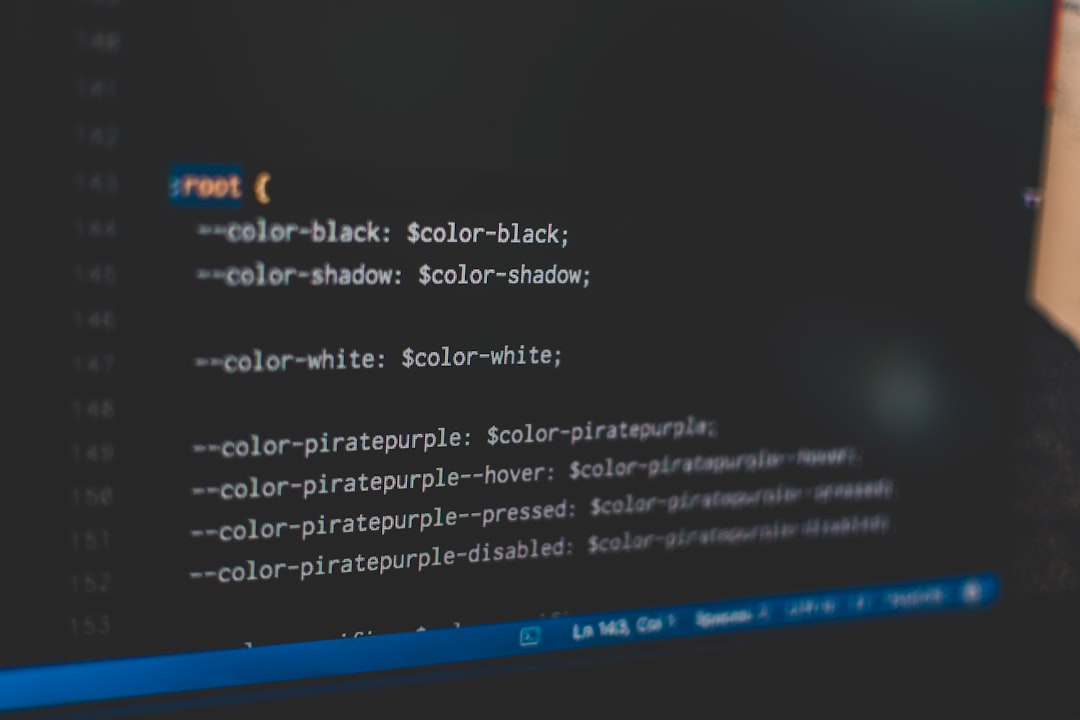
For projects built with the Canvas HTML Template, global typography is controlled through two CSS variables. Set them once in a custom stylesheet and every heading, paragraph, and UI label inherits correctly without hunting through nested selectors.
:root {
  --cnvs-primary-font: 'Playfair Display', Georgia, serif;
  --cnvs-secondary-font: 'Inter', system-ui, sans-serif;
}
The Five Best Google Font Pairings for 2026
Each pairing below is chosen for a specific design context. Use the context description to match a pairing to the project in front of you, not just to your personal preference.
1. Playfair Display + Inter
Best for: editorial blogs, luxury brands, portfolio sites, vacation rentals, and hospitality businesses.
Playfair Display is a high-contrast transitional serif with strong optical weight at large sizes. Inter is a neutral, highly legible grotesque designed for screens. The contrast between them is significant enough to create instant hierarchy. The combination reads as confident and refined without feeling stuffy.
2. Manrope + Lora
Best for: health platforms, wellness brands, mental health services, and coaching sites.
Manrope is a geometric sans-serif with rounded terminals that gives headings an approachable, modern feel. Lora, a serif with brushed curves, adds warmth to body text. This pairing avoids the clinical sharpness of many tech-facing fonts, which matters enormously for trust-sensitive categories. This kind of typographic empathy is a core consideration in mental health platform website design.
3. Space Grotesk + DM Sans
Best for: SaaS products, AI tools, developer tools, fintech, and startup landing pages.
Space Grotesk has distinctive quirky details (notched stems, uneven weight distribution) that give headings personality without veering into novelty territory. DM Sans is clean and efficient for body copy. Both are technically sans-serif but different enough in character to create clear hierarchy. This pairing communicates technical competence while staying readable.
4. Cormorant Garamond + Nunito Sans
Best for: fashion, beauty, salon websites, event brands, and boutique e-commerce.
Cormorant Garamond is exceptionally elegant at display sizes with very fine hairline strokes. Nunito Sans keeps body text grounded and readable. The risk with Cormorant is legibility at small sizes; never use it below 20px and never rely on it for body paragraphs. Pair it with the generous x-height of Nunito Sans and the contrast is immediately arresting.
5. Outfit + Source Serif 4
Best for: creator economy sites, newsletters, bootcamps, course platforms, and community brands.
Outfit is a geometric sans-serif released in 2021 that has matured into one of the most versatile heading fonts available. Source Serif 4 is an optical size-aware serif from Adobe that holds up exceptionally well in body copy even at small sizes. Together they produce a modern editorial feel that suits long-form content environments. For projects in this space, the typographic principles align with what converts in creator economy website design.
Loading Google Fonts Without Killing Page Speed
Google Fonts served naively (the default embed link with no customisation) will request every weight variation available. A single import of Inter with five weights adds 300-400KB to a cold page load. The correct approach is to request only the weights you will actually use, use font-display: swap, and preconnect to the Google Fonts domain before the stylesheet request.
<link rel="preconnect" href="https://fonts.googleapis.com">
<link rel="preconnect" href="https://fonts.gstatic.com" crossorigin>
<link href="https://fonts.googleapis.com/css2?family=Playfair+Display:wght@600;700&family=Inter:wght@400;500&display=swap" rel="stylesheet">
This request loads Playfair Display in two weights (600 and 700) and Inter in two weights (400 and 500). That covers 99% of use cases: a bold display heading, a semibold subheading, regular body, and medium UI labels. Nothing more is needed in most projects.
For Canvas-based projects, place this snippet inside <head> before the style.css reference. Canvas bundles Bootstrap 5 internally, so you never need to load the Bootstrap CDN separately.
Applying a Font Pairing in the Canvas Template
Once you have loaded the fonts via the Google Fonts link, override the Canvas CSS variables in a custom stylesheet. This propagates the change across every element that inherits from those variables without touching the template’s core files.
/ custom-typography.css — loaded after style.css /
:root {
  --cnvs-primary-font: 'Space Grotesk', system-ui, sans-serif;
  --cnvs-secondary-font: 'DM Sans', system-ui, sans-serif;
}

h1, h2, h3, h4, h5, h6 {
  font-family: var(--cnvs-primary-font);
  font-weight: 600;
  letter-spacing: -0.02em;
}

body, p, li, td {
  font-family: var(--cnvs-secondary-font);
  font-weight: 400;
  line-height: 1.7;
}
The letter-spacing reduction on headings (-0.02em) is a small but meaningful detail. Geometric sans-serifs like Space Grotesk are designed with generous default tracking intended for small sizes. At large display sizes, tightening tracking by 1-2% is standard practice and matches what you see on the leading SaaS product sites today.
If you are assembling layouts quickly and want font pairing decisions already baked into AI-generated section prompts, Canvas Builder generates Canvas-compatible HTML with typography variables pre-applied based on the layout type you request.
Three Pairing Conventions Worth Breaking
Most font pairing guides repeat the same rules without question. Here are three worth interrogating in 2026:
- “Always pair a serif with a sans-serif.” This is safe but not a law. Space Grotesk paired with Outfit (both sans-serif, different personalities) creates strong hierarchy and looks distinctly contemporary. The rule to follow is contrast in optical weight, not necessarily in classification.
- “Limit yourself to two fonts.” True in most cases, but for editorial and content-heavy sites a third font for pull quotes or callouts (set in a very large size with 300 weight) adds visual texture without confusion. The constraint is intentionality: every font must have a defined role.
- “Match fonts from the same designer or foundry.” This leads to overly harmonious pairings that blur into one. Some of the most effective pairings on the web today (Cormorant Garamond + Nunito Sans, Outfit + Source Serif 4) come from entirely different design traditions. The contrast is the feature, not a bug.
Typography Works With Whitespace, Not Against It
Font selection is only half the equation. A well-chosen pairing will underperform if it is placed inside a layout with insufficient breathing room. Line height, paragraph spacing, and margin between heading and body text are all part of the typographic system. Tighter spacing suits dense data interfaces. Looser spacing suits editorial and high-ticket service sites where reading comfort is a trust signal.
The relationship between type size, line length, and whitespace is something worth studying in depth before finalising any design system. The principles that apply here overlap directly with broader layout decisions covered in whitespace in web design.
A practical baseline: set body font size at 16-18px, line height at 1.65-1.75, and maximum paragraph width at 68-72 characters (roughly 640-680px at 18px). These numbers are not arbitrary. They reflect decades of readability research applied to screen contexts.
Frequently Asked Questions
How many Google Fonts should I load on a single page?
Two font families with two to three weights each is the practical maximum for most projects. Beyond that, the cumulative HTTP requests and file sizes begin to noticeably affect page load scores, particularly on mobile connections. If your design genuinely needs a third font, consider loading it only on the specific page or section where it appears.
Do Google Fonts affect Core Web Vitals scores?
Yes, if loaded incorrectly. The most common issue is Cumulative Layout Shift (CLS) caused by the browser rendering fallback fonts and then re-rendering when the web font loads. Using font-display: swap in the Google Fonts URL parameter (add &display=swap) and preconnecting to the Google Fonts domain reduces both CLS and Largest Contentful Paint impact significantly.
Can I self-host Google Fonts in a Canvas project?
Yes, and for performance-critical projects it is often the better choice. Download the font files via a tool like google-webfonts-helper, add the WOFF2 files to your project’s fonts directory, and declare them with @font-face in your custom stylesheet. Reference them in –cnvs-primary-font and –cnvs-secondary-font as normal. Self-hosting eliminates the third-party DNS lookup and gives you full control over caching headers.
Which Google Font pairing works best for a SaaS or AI product site?
Space Grotesk paired with DM Sans consistently performs well in this category. Space Grotesk’s distinctive letterforms give brand differentiation at heading sizes while DM Sans keeps UI copy clean and scannable. For conversion-focused SaaS layouts, legibility in small UI text (labels, tooltips, table headers) matters as much as display heading impact.
Is it better to use system fonts instead of Google Fonts in 2026?
System font stacks (system-ui, -apple-system, BlinkMacSystemFont) are faster because there is zero network request. They are a strong choice for web applications where interface speed is paramount and brand distinctiveness in typography is a secondary concern. For marketing sites, landing pages, and brand-forward properties, a carefully loaded Google Font pairing still delivers meaningful differentiation that system fonts cannot replicate.
If you’re working with the Canvas HTML Template and want to generate production-ready layouts faster, try Canvas Builder free and see how much time you save on every project.