Blog

  • Medical Practice Website: Design Principles for Trust and Compliance

    Medical Practice Website: Design Principles for Trust and Compliance

    Patients searching for a doctor online make trust judgements within seconds — and a poorly structured medical website can cost a practice both credibility and new appointments before a single word is read. Getting the design right means balancing clinical authority, accessibility, and regulatory awareness in a way that most generic templates never attempt.

    Key Takeaways

    • Medical website HTML must prioritise trust signals — credentials, certifications, and clear contact details — above visual flair.
    • Accessibility compliance (WCAG 2.1 AA) is not optional for healthcare sites; it protects patients and reduces legal exposure.
    • A structured appointment booking section and compliant footer are two of the highest-impact elements on any doctor website design.
    • The Canvas HTML Template provides a production-ready Bootstrap 5 foundation that can be adapted for medical practices without rebuilding from scratch.

    Why Trust Signals Come First in Healthcare Design

    A medical practice website is not an e-commerce store. Visitors are often anxious, vulnerable, or making decisions that affect their health. Trust signals — professional credentials, association logos, practitioner photos, and verifiable contact details — must appear above the fold and repeat consistently throughout the page.

    The most effective trust architecture for a doctor website design follows a clear hierarchy:

    1. Practitioner name, qualifications, and GMC or state licence number visible in the header or hero section
    2. Association membership badges (e.g. BMA, AMA, royal colleges) placed immediately below the hero
    3. Patient testimonials with first name and treatment type — never anonymous
    4. A physical address and telephone number in the header, not hidden in the footer

    Studies from the Baymard Institute consistently show that unfamiliar organisations earn trust fastest through specificity. Vague claims like “experienced team” are ignored; a named consultant with twenty years of cardiology practice at a named hospital is convincing. Write every credential string into the HTML directly — do not hide it inside lazy-loaded JavaScript components that search engines and screen readers miss.

    graphical user interface, website
    Photo by PiggyBank on Unsplash

    Accessibility and WCAG 2.1 AA Compliance

    Healthcare websites serving the public in the UK, US, EU, and most other jurisdictions are expected — and in many cases legally required — to meet WCAG 2.1 Level AA. For a medical website HTML build, this means colour contrast ratios of at least 4.5:1 for body text, keyboard-navigable interactive elements, and meaningful alt text on every clinical image.

    Bootstrap 5, which Canvas bundles natively, gives you a compliant grid and utility classes out of the box. What it does not give you automatically is sufficient colour contrast when you apply a custom brand palette. Always verify your chosen theme colour against Canvas’s --cnvs-themecolor variable with a contrast checker before going live.

    A practical pattern for an accessible appointment button in Canvas:

    <a href="booking.html"
       class="button button-large button-rounded"
       style="--cnvs-themecolor: #005A8E; background-color: var(--cnvs-themecolor);"
       aria-label="Book an appointment with Dr. Singh">
      Book an Appointment
    </a>

    The aria-label attribute gives screen reader users context that the visual text alone does not always provide. Use it on every CTA that could refer to multiple practitioners or service types. For deeper guidance on button patterns, the post on CTA button design covers contrast and sizing considerations in detail.

    The footer of a medical practice website carries a disproportionate legal and regulatory load. At minimum, a UK-registered medical site must include the practice’s registered address, CQC registration number (where applicable), and a link to the privacy policy that references UK GDPR or relevant local law. US practices serving Medicare/Medicaid patients face additional non-discrimination notice requirements.

    A well-structured medical footer typically contains:

    • Registered practice name, address, and company/charity number
    • Regulatory body registration references with links to public registers
    • Links to Privacy Policy, Cookie Policy, and Accessibility Statement
    • Out-of-hours and emergency care signposting (critical for patient safety)
    • Copyright line with the current year

    The post on footer design best practices gives a framework for deciding what belongs in each footer column — apply those principles alongside the compliance requirements specific to healthcare.

    person sitting while using laptop computer and green stethoscope near
    Photo by National Cancer Institute on Unsplash

    Structuring the Appointment Booking Section

    The appointment booking flow is the primary conversion goal for most doctor websites. It should be treated with the same rigour as a landing page — a single focused objective, minimal distractions, and clear microcopy that reduces form-abandonment anxiety. For context on conversion-focused page structure, the guide on what is a landing page explains the principles that apply directly here.

    A minimal, accessible booking form built on Bootstrap 5’s grid (included in Canvas) looks like this:

    <section class="section bg-light">
      <div class="container">
        <div class="row justify-content-center">
          <div class="col-lg-8">
            <h2 class="mb-4">Request an Appointment</h2>
            <form action="booking-handler.php" method="post" novalidate>
              <div class="row g-3">
                <div class="col-md-6">
                  <label for="patient-name" class="form-label">Full Name <span aria-hidden="true">*</span></label>
                  <input type="text" class="form-control" id="patient-name" name="name" required autocomplete="name">
                </div>
                <div class="col-md-6">
                  <label for="patient-phone" class="form-label">Phone Number <span aria-hidden="true">*</span></label>
                  <input type="tel" class="form-control" id="patient-phone" name="phone" required autocomplete="tel">
                </div>
                <div class="col-12">
                  <label for="appointment-type" class="form-label">Appointment Type</label>
                  <select class="form-select" id="appointment-type" name="type">
                    <option value="">Select a service</option>
                    <option value="gp-consultation">GP Consultation</option>
                    <option value="follow-up">Follow-Up Visit</option>
                    <option value="vaccination">Vaccination</option>
                  </select>
                </div>
                <div class="col-12">
                  <button type="submit" class="button button-large button-rounded"
                    style="background-color: var(--cnvs-themecolor);">
                    Request Appointment
                  </button>
                </div>
              </div>
            </form>
          </div>
        </div>
      </div>
    </section>
    Note the use of autocomplete attributes — these are required for WCAG 1.3.5 compliance and significantly reduce friction for returning patients completing forms on mobile devices.

    Typography and Colour for Clinical Credibility

    Medical practices should avoid the oversaturated brand palettes common in e-commerce. Muted blues, teals, and greens consistently outperform high-energy reds and oranges in healthcare user testing because they signal calm, competence, and hygiene. Set your Canvas theme colour accordingly:

    :root {
      --cnvs-themecolor: #006D77;
      --cnvs-themecolor-rgb: 0, 109, 119;
      --cnvs-primary-font: 'Inter', sans-serif;
      --cnvs-secondary-font: 'Lora', serif;
    }

    Using a serif secondary font for practitioner bios and long-form clinical content improves readability and signals editorial seriousness — a quality patients associate with established medical institutions. Set body text no smaller than 16px (1rem); use the px to rem converter to keep your sizing consistent across the stylesheet.

    SEO and Schema Markup for Healthcare Practices

    Medical website HTML benefits enormously from structured data. Google’s MedicalOrganization and Physician schema types help search engines surface your practice in local knowledge panels, map packs, and rich results — particularly relevant for “doctor near me” searches that have grown sharply through 2024 and into 2025.

    A basic JSON-LD block for a GP practice:

    <script type="application/ld+json">
    {
      "@context": "https://schema.org",
      "@type": "MedicalOrganization",
      "name": "Greenfield Medical Practice",
      "url": "https://www.greenfieldmedical.co.uk",
      "logo": "https://www.greenfieldmedical.co.uk/images/logo.png",
      "telephone": "+44-20-7946-0000",
      "address": {
        "@type": "PostalAddress",
        "streetAddress": "14 Harley Street",
        "addressLocality": "London",
        "postalCode": "W1G 9PH",
        "addressCountry": "GB"
      },
      "medicalSpecialty": "GeneralPractice",
      "openingHours": "Mo-Fr 08:00-18:00"
    }
    </script>

    Place this block in the <head> of your Canvas template. It does not affect visual rendering but significantly improves how search engines index and display the practice.

    Frequently Asked Questions

    What makes a healthcare website template different from a general business template?

    A healthcare website template needs to accommodate regulatory footer content, accessibility compliance to WCAG 2.1 AA, trust-signal architecture around practitioner credentials, and patient-safe colour palettes. General business templates rarely address these requirements out of the box, which is why customisation choices matter so much in medical projects.

    Is Canvas HTML Template suitable for building a medical practice website?

    Yes. Canvas provides a Bootstrap 5 foundation with flexible section types and full CSS variable control, making it straightforward to implement accessible layouts, compliant footers, and schema markup generator. The existing healthcare demo in Canvas offers a starting point that you can adapt to match a specific practice’s brand and services.

    What GDPR considerations apply to doctor website design in the UK?

    Any form that collects patient data — including appointment requests — processes special category data under UK GDPR. You must have a lawful basis for processing, display a clear privacy notice at the point of data collection, and ensure data is stored securely. A cookie consent banner covering analytics and tracking scripts is also required.

    How do I set the Canvas theme colour for a medical brand without affecting Bootstrap utilities?

    Set --cnvs-themecolor and --cnvs-themecolor-rgb in your :root CSS block within style.css. Canvas components reference these variables natively. You do not need to modify Bootstrap’s source variables or load an additional Bootstrap CDN stylesheet — Canvas bundles Bootstrap 5 internally and its own variable layer sits on top.

    Should a medical practice use a single-page layout or a multi-page website?

    Most practices benefit from a multi-page structure — separate pages for each service, individual practitioner profiles, a dedicated booking page, and a patient information section. A single-page layout can work for solo practitioners with a narrow service range, but it limits SEO targeting and makes regulatory content harder to structure without overwhelming the user.

    If you’re working with the Canvas HTML Template and want to generate production-ready layouts faster, try Canvas Builder free and see how much time you save on every project.


  • test

    test

    Most visitors who land on your website will leave within seconds unless one thing is immediately clear: what you want them to do next. A well-built landing page solves that problem by removing every distraction and focusing the entire page on a single conversion goal.

    Key Takeaways

    • A landing page is a standalone web page designed around a single call-to-action, separate from your main site navigation.
    • The most effective landing pages eliminate navigation menus, use a focused headline, and place the CTA above the fold.
    • Common landing page types include lead generation, click-through, app download, webinar registration, and product launch pages.
    • Using a structured HTML template like the Canvas HTML Template gives you a reliable Bootstrap 5 foundation for building high-converting landing pages quickly.

    What a Landing Page Actually Is

    A landing page is a standalone web page that a visitor “lands on” after clicking a specific link — typically from a paid ad, email campaign, social media post, or search result. Unlike a homepage, which serves multiple audiences and purposes, a landing page has one job: to get a visitor to complete a single, defined action.

    That action might be submitting an email address, starting a free trial, downloading a resource, booking a demo, or purchasing a product. Everything on the page — the headline, copy, imagery, and layout — is engineered to move the visitor toward that one outcome. Navigation menus, third-party links, and unrelated content are deliberately excluded to prevent distraction.

    This distinction matters in 2025 because digital ad spend continues to rise while average attention spans shrink. Sending paid traffic to a generic homepage wastes budget. Sending it to a purpose-built landing page measurably improves conversion rates.

    text
    Photo by iMattSmart on Unsplash

    The Main Types of Landing Pages

    Understanding which type of landing page fits your goal is the first design decision you need to make. The structure, content length, and CTA mechanics differ significantly between types.

    • Lead generation pages — Collect visitor information (usually an email address) in exchange for something of value: a free guide, checklist, or newsletter subscription. The form is the primary UI element.
    • Click-through pages — Used in e-commerce and SaaS funnels, these warm up the visitor with benefits and social proof before routing them to a checkout or signup page. No form is involved.
    • App download pages — Focused entirely on driving installs from the App Store or Google Play. If you are building one, the post on App Download Landing Page: Getting Users to Tap Install covers the specific design patterns that increase tap-through rates.
    • Webinar registration pages — Time-sensitive pages that combine social proof, speaker credibility, and urgency to drive sign-ups. See Webinar Registration Pages: Design Elements That Fill Seats for a detailed breakdown.
    • Product launch pages — Announce and pre-sell a new product or feature, often including a countdown timer and early-access incentive.
    • Squeeze pages — Minimalist single-field forms, often a single email input, designed for maximum opt-in rate at the top of a funnel.

    The Anatomy of a High-Converting Landing Page

    Regardless of type, the most effective landing pages share a consistent structural pattern. Each element has a specific conversion function.

    1. Hero section — A clear, benefit-driven headline, a supporting subheadline, and a primary CTA button, all visible without scrolling.
    2. Social proof — Logos, testimonials, star ratings, or user counts placed immediately below the hero to reduce friction.
    3. Feature or benefit section — Explains what the visitor gets and why it matters, using concise copy and supporting visuals.
    4. Secondary CTA — Repeated at mid-page and again near the footer so visitors who scroll past the hero are not left without a next step.
    5. Trust signals — Security badges, money-back guarantees, media mentions, or certifications near the form or purchase button.
    6. Minimal footer — A landing page footer should contain only legal links and perhaps a logo. For guidance on what to include versus cut, the post on Footer Design Best Practices is a useful reference.
    person using macbook pro on black table
    Photo by Daniel Thomas on Unsplash

    Building a Landing Page Hero in HTML and Bootstrap 5

    If you are building with the Canvas HTML Template, your landing page hero section lives inside a Bootstrap 5 grid. The example below shows a focused hero with a headline, supporting text, and a CTA button — no navigation distractions included.

    <section id="hero" class="py-6 bg-light">
      <div class="container">
        <div class="row justify-content-center text-center">
          <div class="col-lg-8">
            <h1 class="display-4 fw-bold mb-3">
              Launch Your Product in Half the Time
            </h1>
            <p class="lead text-muted mb-4">
              Canvas Builder generates production-ready HTML layouts
              so your team ships faster without sacrificing quality.
            </p>
            <a href="/signup" class="button button-large button-rounded"
               style="background-color: var(--cnvs-themecolor); color: #fff;">
              Start Free — No Credit Card Required
            </a>
          </div>
        </div>
      </div>
    </section>

    Notice the CTA button uses var(–cnvs-themecolor) — the correct Canvas CSS variable for your brand colour. Avoid overriding this with hardcoded hex values; updating the variable in one place will cascade across the entire page. For deeper guidance on button design decisions, the post on CTA Button Design: Science-Backed Tips That Drive Clicks covers colour contrast, sizing, and copy patterns backed by research.

    Landing Page Best Practices for 2025

    Technical structure alone does not determine conversion rate. These principles consistently separate high-performing pages from underperforming ones.

    • Match the message to the ad — The headline on your landing page should mirror the language in the ad or email that brought the visitor there. Mismatched messaging kills trust immediately.
    • Remove the navigation menu — Every additional link is an exit route. Landing pages with navigation menus consistently convert at lower rates than those without.
    • Keep forms short — Every additional form field reduces completion rate. Ask only for what you genuinely need at this stage of the funnel.
    • Use a single primary CTA — Multiple competing calls-to-action divide attention. One page, one goal, one button.
    • Optimise page speed — Canvas HTML Template bundles Bootstrap 5 natively; never load the Bootstrap CDN separately, as it adds redundant requests. Reference only js/plugins.min.js and js/functions.bundle.js for scripts, and style.css plus css/font-icons.css for stylesheets.
    • Write for skimmers — Use short paragraphs, benefit-led bullet points, and bold key phrases. Most visitors read in an F-pattern and will not process dense prose.

    If you want a checklist of the specific Canvas sections that perform best in landing page contexts, the post on 10 Canvas HTML Template Sections Every Landing Page Needs walks through each one with practical configuration notes.

    Customising Landing Page Styles with Canvas CSS Variables

    Visual consistency between your ad creative and your landing page increases trust and reduces bounce rate. In Canvas, the fastest way to apply consistent branding across a landing page is to override CSS variables generator in a single style block rather than hunting for individual selectors.

    :root {
      --cnvs-themecolor: #e63946;
      --cnvs-themecolor-rgb: 230, 57, 70;
      --cnvs-primary-font: 'Inter', sans-serif;
      --cnvs-secondary-font: 'Playfair Display', serif;
      --cnvs-header-bg: #ffffff;
      --cnvs-header-sticky-bg: #ffffff;
      --cnvs-primary-menu-color: #1d1d1d;
      --cnvs-primary-menu-hover-color: #e63946;
    }

    Place this block in the <head> of your landing page file, after the Canvas style.css import. Every Canvas component — buttons, links, highlights, and interactive states — will inherit these values automatically. No need to override individual component classes.

    Frequently Asked Questions

    What is the difference between a landing page and a homepage?

    A homepage introduces your entire brand to a broad audience and typically includes navigation, multiple CTAs, and links to different sections of the site. A landing page is purpose-built for a single campaign goal, usually has no navigation menu, and presents a single CTA. Homepages serve awareness; landing pages serve conversion.

    How long should a landing page be?

    Length should match the complexity of the offer. A simple email opt-in for a free download can convert well on a short, single-screen page. A high-ticket SaaS product or a premium course often needs a longer page with detailed benefits, FAQs, testimonials, and multiple CTA placements. Let the decision difficulty of the visitor guide the length, not arbitrary word counts.

    Do landing pages need to be separate from the main website?

    Not necessarily. They can live on a subdomain, a subfolder of your main domain, or as a standalone URL. What matters is that the page is functionally isolated — no navigation menu that lets visitors wander away, and no competing CTAs. Many teams build landing pages directly within their main site structure for SEO and brand consistency reasons.

    Should a landing page include SEO content?

    It depends on traffic source. Landing pages driven by paid ads do not need to rank organically, so SEO is secondary. Pages targeting organic search traffic should include relevant keywords, a proper meta description, and structured heading hierarchy. For pages shared on social media, adding correct Open Graph generator tags ensures the page preview appears correctly when shared, which directly affects click-through rate.

    Can I build a landing page with the Canvas HTML Template without writing code?

    Canvas Builder is specifically designed for this. It generates production-ready Canvas HTML layouts from a prompt, so you can produce a complete landing page structure — hero, features, testimonials, CTA, and footer — without writing the underlying HTML manually. You then customise the output to match your campaign requirements.

    If you’re working with the Canvas HTML Template and want to generate production-ready layouts faster, try Canvas Builder free and see how much time you save on every project.

  • Footer Design Best Practices: What to Include and What to Cut

    Footer Design Best Practices: What to Include and What to Cut

    Your footer is the last thing a visitor sees before they leave — and most designers treat it as an afterthought. Done well, a footer reinforces trust, surfaces critical navigation, and can even convert hesitant users who scrolled all the way to the bottom looking for a reason to stay.

    Key Takeaways

    • A well-structured footer improves navigation, builds trust, and supports SEO — it is not just a legal requirement box.
    • The most effective footer layouts use a clear column grid, logical link groupings, and a single secondary call-to-action.
    • Clutter is the primary footer killer — cut anything that does not serve a clear user or business purpose.
    • Bootstrap 5 grid classes make it straightforward to build a responsive, multi-column footer that collapses cleanly on mobile.

    Scroll-depth studies consistently show that a meaningful percentage of visitors reach the footer — particularly on landing pages, blog posts, and service pages where users are actively researching. These are high-intent visitors. They have read enough to want more information, and a poorly designed footer sends them away empty-handed.

    From an SEO perspective, footer links carry internal link equity. Every page on your site inherits a small share of authority from whatever is linked in the footer, so linking to your most important service or product pages there is a deliberate, low-effort win. In 2025, Google’s crawlers also use footer structure as a signal of site architecture quality — a chaotic footer with 60 unorganised links is a red flag.

    For projects built on the Canvas HTML Template, the footer is a standalone section block you can compose from pre-built column layouts — making it easier than ever to apply best practices without starting from scratch.

    Computer screen displaying code and terminal output
    Photo by Bernd 📷 Dittrich on Unsplash

    There is a core set of footer elements that users have been conditioned to look for. Missing any of them creates friction and erodes trust. These are non-negotiable regardless of site type:

    • Logo or brand name — anchors the footer visually and reinforces brand identity at the close of every page.
    • Navigation links grouped by category — typically Company, Services/Products, Resources, and Legal. Grouping reduces cognitive load.
    • Contact information — at minimum an email address or a link to a contact page. For local businesses, include a physical address.
    • Legal links — Privacy Policy, Terms of Service, and Cookie Policy. These are legal requirements in most jurisdictions and should never be buried or removed.
    • Copyright line — simple, small, always present.
    • Social media links — only include platforms you actively maintain. A ghost Twitter/X profile linked from your footer does more harm than good.

    If your site collects email addresses, a newsletter signup field in the footer is one of the highest-converting placements on any website. Users who reach the footer are already engaged — a single-field email form with a clear value proposition captures that intent at exactly the right moment.

    Overcrowded footers are the norm, not the exception. The instinct to include everything “just in case” results in a wall of links that users ignore entirely. Apply the same editorial discipline here as you would to whitespace decisions throughout your layout — removing elements is a design choice, not laziness.

    Cut these if they appear in your current footer:

    • Duplicate primary navigation — repeating your main nav in the footer is redundant on most sites. Use the footer for secondary and utility links instead.
    • Tag clouds or category lists — these are a relic of early-2000s blog design and add visual noise without meaningful navigation value.
    • Recent posts widgets — unless your site is primarily a publication, recent posts in the footer fragment attention from your conversion goals.
    • Excessive social proof badges — one or two trust logos are fine; eight accreditation badges stacked vertically are not.
    • Auto-playing media or animations — footers should be calm, not distracting.
    • Links to inactive or outdated pages — audit your footer links annually and remove anything that 404s or leads to stale content.
    the best way to build web apps without code
    Photo by Team Nocoloco on Unsplash

    A standard four-column footer layout works well for most business websites. Using Bootstrap 5’s grid system — which Canvas includes bundled — you can build a footer that stacks to a single column on mobile without any custom Bootstrap breakpoint tester logic.

    <footer id="footer">
      <div class="container">
        <div class="footer-widgets-wrap py-5">
          <div class="row col-mb-50">
    
            <!-- Brand + description -->
            <div class="col-lg-4 col-md-6">
              <div class="widget">
                <img src="images/logo.png" alt="Brand Logo" class="mb-3" style="height: var(--cnvs-logo-height, 36px);">
                <p class="text-muted">We help growing businesses build better digital products. Based in London, working globally.</p>
              </div>
            </div>
    
            <!-- Company links -->
            <div class="col-lg-2 col-md-3 col-6">
              <div class="widget widget_links">
                <h4>Company</h4>
                <ul>
                  <li><a href="/about">About</a></li>
                  <li><a href="/careers">Careers</a></li>
                  <li><a href="/blog">Blog</a></li>
                  <li><a href="/contact">Contact</a></li>
                </ul>
              </div>
            </div>
    
            <!-- Services links -->
            <div class="col-lg-2 col-md-3 col-6">
              <div class="widget widget_links">
                <h4>Services</h4>
                <ul>
                  <li><a href="/web-design">Web Design</a></li>
                  <li><a href="/development">Development</a></li>
                  <li><a href="/seo">SEO</a></li>
                  <li><a href="/branding">Branding</a></li>
                </ul>
              </div>
            </div>
    
            <!-- Newsletter signup -->
            <div class="col-lg-4 col-md-6">
              <div class="widget">
                <h4>Stay in the loop</h4>
                <p class="text-muted">Monthly tips on design, development, and growth.</p>
                <form class="d-flex gap-2">
                  <input type="email" class="form-control" placeholder="Your email address">
                  <button type="submit" class="btn btn-primary">Join</button>
                </form>
              </div>
            </div>
    
          </div>
        </div>
      </div>
    
      <!-- Footer bottom bar -->
      <div id="copyrights">
        <div class="container">
          <div class="row justify-content-between align-items-center">
            <div class="col-md-6 text-center text-md-start">
              <p class="mb-0">&copy; 2025 YourBrand. All rights reserved.</p>
            </div>
            <div class="col-md-6 text-center text-md-end mt-2 mt-md-0">
              <a href="/privacy">Privacy Policy</a> &nbsp;&bull;&nbsp;
              <a href="/terms">Terms of Service</a>
            </div>
          </div>
        </div>
      </div>
    </footer>

    This structure follows Canvas’s native footer conventions. The logo height uses --cnvs-logo-height so it respects your global Canvas theme variable rather than hardcoding a pixel value that might conflict with sticky header settings.

    Most footer designs default to a dark background with light text — this works because it creates a clear visual boundary between the page body and the footer, signalling “end of content” to the user. It also lets legal and secondary links recede without competing with main content.

    When theming a Canvas footer, set the background via a scoped CSS override rather than inline styles, using Canvas’s own variable system:

    #footer {
      --cnvs-header-bg: #1a1a2e;
      background-color: #1a1a2e;
      color: rgba(255, 255, 255, 0.75);
    }
    
    #footer a {
      color: rgba(255, 255, 255, 0.6);
      transition: color 0.2s ease;
    }
    
    #footer a:hover {
      color: var(--cnvs-themecolor);
      text-decoration: none;
    }

    Keep footer body text at 14px (0.875rem) or smaller — it reads as secondary without being inaccessible. Section headings within the footer should be 13–14px uppercase with letter-spacing applied, which is a pattern used widely across professional web design in 2025 because it creates hierarchy without requiring large font sizes. You can use the px to rem converter to maintain consistent relative sizing throughout your footer typography.

    The footer is an appropriate place for a single, low-pressure call-to-action. Unlike hero section CTAs, footer CTAs target users who need more convincing — so softer language works better here. “Start a free trial” is a hero CTA; “See how it works” or “Book a 15-minute call” is a footer CTA. For more on writing effective calls-to-action at different stages of the page, the principles covered in CTA button design tips apply directly to footer button choices as well.

    Trust signals that belong in the footer include:

    • Security badges (SSL, payment processor logos) — essential for e-commerce
    • One or two accreditation logos if your industry requires them
    • A brief one-line mission statement or tagline beneath the logo
    • GDPR or CCPA compliance notice if applicable

    What does not belong: star ratings, testimonials carousels, or animated counters. Save those for above-the-fold sections where they carry conversion weight. The footer should communicate quiet confidence, not shout for attention.

    Frequently Asked Questions

    How many links should a website footer contain?

    There is no universal rule, but research suggests users engage most with footers containing 10–20 well-organised links. More than 30 links typically results in decision paralysis and none being clicked. Group links into clear categories and prioritise pages that convert — service pages, contact, and your most-read resources.

    Should the footer repeat the main navigation?

    Generally no. The footer should complement the main navigation, not duplicate it. Use the footer for secondary pages (About, Legal, Careers), utility links (Login, Status, API Docs), and grouped service categories that would clutter the primary menu.

    Is a dark footer always better than a light one?

    Dark footers are more common because they create a clear visual separation from page content, but a light footer can work well on minimal or editorial sites where a hard boundary would feel jarring. The key principle is contrast — the footer must visually distinguish itself from the last section of the page, whatever colour scheme you choose.

    How do I set footer background colour in the Canvas HTML Template without breaking other styles?

    Target the #footer ID with a scoped background-color rule in your custom CSS file. Avoid using inline styles or overriding Bootstrap utility classes globally. If you are using Canvas’s dark footer variant, add the dark class to the footer element and set the background via your CSS override as shown in the code example above.

    Does footer content affect SEO?

    Yes, in two ways. First, links in the footer pass internal link equity to the pages they point to, so linking your most important service and product pages from the footer reinforces their authority. Second, footer text is indexed — thin, keyword-stuffed footer paragraphs are a known negative signal, so keep any descriptive text in the footer genuinely useful and brief.

    If you’re working with the Canvas HTML Template and want to generate production-ready layouts faster, try Canvas Builder free and see how much time you save on every project.
  • CTA Button Design: Science-Backed Tips That Drive Clicks

    CTA Button Design: Science-Backed Tips That Drive Clicks

    A button that blends into the page is a conversion killer, yet the gap between a mediocre CTA and a high-performing one often comes down to a handful of deliberate, testable design decisions. Understanding the science behind why users click — and translating that into clean, production-ready HTML — is one of the highest-leverage skills in web design.

    Key Takeaways

    • CTA button colour, size, and copy each independently affect click-through rates — optimising all three compounds the gains.
    • Contrast against the surrounding page background matters more than the specific colour you choose for your button.
    • Microcopy — the small words on and around the button — reduces friction and increases perceived safety for the user.
    • Spacing, placement, and visual hierarchy are structural decisions that should be made before you write a single line of button CSS.

    Why CTA Button Design Is a Science, Not a Stylistic Choice

    Conversion-rate researchers have been running controlled button experiments for over two decades. What has emerged is a body of evidence that treats the CTA button not as decoration but as a functional object with measurable psychological properties. Colour affects emotional state. Size signals importance. Label wording either reduces or amplifies cognitive load. These are not opinions — they are repeatable findings from A/B testing at scale.

    For developers and designers working with the Canvas HTML Template, this matters because Canvas ships with Bootstrap 5’s utility system, meaning you can apply evidence-backed button patterns directly using existing classes — no custom framework required. The challenge is knowing which patterns to apply and why.

    a close up of a black and red sign
    Photo by Afif Ramdhasuma on Unsplash

    Colour, Contrast, and the Attention Economy

    The most important visual property of any CTA button design is contrast — not just colour. A green button on a green background will be ignored. The same green button on a dark navy background will demand attention. Research from the Nielsen Norman Group consistently shows that users scan pages in F-patterns and Z-patterns, meaning your button must interrupt the scan path visually to get noticed.

    In Canvas, your primary brand colour is set via the --cnvs-themecolor CSS variables generator. Rather than fighting that value, build your CTA contrast around it:

    :root {
      --cnvs-themecolor: #e84545;
    }
    
    .btn-cta-primary {
      background-color: var(--cnvs-themecolor);
      color: #ffffff;
      border: none;
      padding: 14px 36px;
      font-family: var(--cnvs-primary-font);
      font-size: 1rem;
      font-weight: 700;
      border-radius: 4px;
      transition: opacity 0.2s ease;
    }
    
    .btn-cta-primary:hover {
      opacity: 0.88;
      color: #ffffff;
    }

    If your hero section background is light, use a saturated, dark-valued button colour. If your section is dark — as many Canvas hero sections are — use a high-luminance button like white or a bright accent. Avoid grey buttons entirely for primary actions; users interpret grey as disabled.

    Button Size and Tap-Target Guidelines

    Google’s Material Design guidelines specify a minimum tap target of 48×48 pixels for touchscreen interactions. Apple’s Human Interface Guidelines recommend a minimum of 44×44 points. In 2025, with mobile traffic exceeding 60% on most sites, a button that is comfortable to tap is not optional — it is a baseline requirement.

    Bootstrap 5, which Canvas bundles, provides .btn-lg and .btn-sm modifiers. For primary CTAs above the fold, always use at minimum the default .btn sizing, and prefer .btn-lg on mobile viewports:

    <div class="d-grid d-sm-block">
      <a href="/signup" class="btn btn-lg btn-danger fw-bold px-5 py-3">
        Start Your Free Trial
      </a>
    </div>

    The d-grid d-sm-block pattern makes the button full-width on mobile (easier to tap) and inline on desktop. This single pattern alone can measurably lift mobile conversion rates. For posts exploring conversion-focused layout decisions in depth, the guide on SaaS website design for B2B homepages covers how button placement interacts with the surrounding page structure.

    Pile of dry autumn leaves with one bright yellow leaf.
    Photo by sina rezakhani on Unsplash

    Writing Button Copy That Actually Converts

    Button labels are the most underestimated lever in conversion design. Generic labels like “Submit”, “Click Here”, or “Learn More” tell the user nothing about what happens next. Specificity reduces uncertainty, and reducing uncertainty removes a major barrier to clicking.

    Apply these principles to your label writing:

    1. First-person framing: “Start My Free Trial” outperforms “Start Your Free Trial” in the majority of tests because it removes psychological distance.
    2. Outcome-first language: Lead with the result the user wants, not the action you want them to take. “Get Instant Access” beats “Register Now”.
    3. Urgency without dishonesty: “Join 12,000 users today” is more credible than “Limited time only!” — and specificity builds trust.
    4. Microcopy beneath the button: A single line below a payment CTA — such as “No credit card required. Cancel anytime.” — can recover a significant percentage of users who hesitate at the last moment.
    <div class="text-center">
      <a href="/signup" class="btn btn-lg btn-primary fw-bold px-5 py-3">
        Start My Free Trial
      </a>
      <p class="text-muted small mt-2 mb-0">No credit card required. Cancel anytime.</p>
    </div>

    This pattern is especially effective on webinar registration pages and app download landing pages where hesitation points are predictable and addressable with a single line of reassurance copy.

    Placement, Visual Hierarchy, and Whitespace

    Even a perfectly designed button will underperform if it is buried. Visual hierarchy determines where the eye lands first, and your primary CTA should always sit at the apex of that hierarchy on any given section. For Canvas layouts, this typically means placing the primary CTA inside a hero section’s .hero-caption container, above the fold on desktop, and following it with a secondary ghost-style button if a soft option is needed:

    <div class="d-flex flex-column flex-sm-row gap-3 justify-content-center">
      <a href="/get-started" class="btn btn-lg btn-primary fw-bold px-5">
        Get Started Free
      </a>
      <a href="/how-it-works" class="btn btn-lg btn-outline-light px-5">
        See How It Works
      </a>
    </div>

    Surround your CTA with adequate whitespace. Crowding a button with competing elements reduces its visual weight and lowers click rates. A rule of thumb: the button’s surrounding padding should be at least equal to its own height on all sides. For a deeper look at how spacing decisions affect conversion throughout a page, the post on whitespace in web design is worth reading alongside this guide.

    Testing and Iterating Your HTML Template CTA

    No single design choice is universally optimal. What works for a SaaS pricing table will not necessarily work for an e-commerce checkout. The practical implication is that your HTML template CTA should be structured for easy variation — clean, semantic, class-based styling that can be swapped during A/B tests without touching layout markup.

    In Canvas, the cleanest approach is to define CTA variants as modifier classes scoped to a single stylesheet block:

    .btn-cta-a {
      background-color: var(--cnvs-themecolor);
      color: #fff;
      padding: 14px 40px;
      border-radius: 4px;
      font-weight: 700;
    }
    
    .btn-cta-b {
      background-color: #1a1a2e;
      color: #fff;
      padding: 14px 40px;
      border-radius: 40px;
      font-weight: 700;
      letter-spacing: 0.03em;
    }

    Switching between .btn-cta-a and .btn-cta-b in your test requires a one-character class name change, leaving the HTML structure intact. Track clicks via your analytics platform of choice, run each variant for a statistically significant sample size (typically 1,000+ unique visitors per variant), and let data — not preference — decide the winner.

    Frequently Asked Questions

    What is the best colour for a CTA button?

    There is no universally best colour. The most important factor is contrast against the surrounding section background. Red, orange, and green buttons are frequently cited in conversion literature, but their effectiveness depends entirely on the page context. Test your highest-contrast option against your second choice before drawing conclusions.

    How many CTA buttons should appear on a single page?

    Each page should have one primary CTA — the single most important action you want the user to take. Secondary CTAs (soft options like “Learn More” or “Watch a Demo”) can appear alongside it, styled as outline or ghost buttons to maintain clear visual hierarchy. Avoid placing two equal-weight primary buttons in the same viewport.

    Does button shape affect conversion rates?

    Research findings on rounded versus square corners are mixed, but slightly rounded corners (border-radius of 4px–8px) tend to perform well across industries. Pill-shaped buttons (fully rounded) can test well for consumer-facing products but may feel informal in enterprise or professional service contexts. Shape should match your brand tone, then be tested.

    How do I customise CTA button styles in the Canvas HTML Template without breaking the template?

    The safest approach is to add a custom modifier class to your button element and define all overrides in a separate custom stylesheet loaded after Canvas’s style.css. Avoid editing style.css directly. Use the --cnvs-themecolor CSS variable for colour values so your changes stay consistent with the rest of the template’s colour system.

    Should the CTA button text be sentence case or title case?

    Sentence case (“Get started free”) reads slightly faster due to familiarity from body text, while title case (“Get Started Free”) can feel more formal and badge-like. Either can perform well; the more impactful variable is the specificity and clarity of the label itself. Test copy changes before testing case changes — label wording typically has a larger effect size.

    If you’re working with the Canvas HTML Template and want to generate production-ready layouts faster, try Canvas Builder free and see how much time you save on every project.
  • Open Graph Tags: The Complete Guide to Social Media Previews

    Open Graph Tags: The Complete Guide to Social Media Previews

    Every time someone shares a link on LinkedIn, Twitter, Facebook, or Slack, the platform reaches into your page’s <head> and pulls out a title, description, and image to display as a rich preview card. If you haven’t told it what to use, it guesses — and it usually guesses wrong. Open Graph tag generators are the handful of meta tags that put you back in control of that first impression.

    Key Takeaways

    • Open Graph tags are HTML meta tags placed in your page’s <head> that control how your content appears when shared on social media platforms.
    • The four required tags are og:title, og:type, og:image, and og:url — everything else is optional but strongly recommended.
    • Your og:image should be at least 1200×630 pixels to render correctly across Facebook, LinkedIn, and most messaging apps.
    • Twitter/X uses its own twitter:card meta tags, which complement — but do not replace — Open Graph tags.

    What Are Open Graph Tags and Why Do They Matter

    Open Graph (OG) is a protocol originally developed by Facebook in 2010 to standardise how web pages describe themselves to social platforms. The protocol works through <meta> tags added to your HTML document’s <head> section, using a property attribute prefixed with og:. When a crawler from Facebook, LinkedIn, Slack, Discord, WhatsApp, or iMessage visits your URL, it reads these tags and uses them to construct a preview card.

    Without OG tags, platforms fall back on whatever they can scrape — often the first paragraph of body text, a random image from the page, or the raw URL itself. The result is an unprofessional preview that reduces click-through rates and undermines the credibility of every page you publish. For any project built on the Canvas HTML Template, adding OG tags is a zero-effort, high-return step that should be part of every deployment checklist.

    The Four Required Open Graph Tags

    The Open Graph protocol defines four tags as mandatory. Without all four, some platforms will refuse to render a preview card entirely.

    1. og:title — The title of your page as it should appear in the preview. This can differ from your HTML <title> tag; keep it under 60 characters to avoid truncation.
    2. og:type — The type of content: website for most pages, article for blog posts, product for e-commerce items.
    3. og:image — An absolute URL to the image that will appear in the preview card. This is the single most important tag for visual impact.
    4. og:url — The canonical URL of the page. This prevents duplicate preview cards when the same content is accessible via multiple URLs.
    <head>
      <meta charset="UTF-8">
      <title>SaaS Platform for Growing Teams | Acme</title>
    
      <!-- Required Open Graph tags -->
      <meta property="og:title" content="SaaS Platform for Growing Teams">
      <meta property="og:type" content="website">
      <meta property="og:image" content="https://www.example.com/assets/images/og-homepage.jpg">
      <meta property="og:url" content="https://www.example.com/">
    </head>

    Beyond the four required tags, a small set of optional properties significantly improves how your previews render and how platforms index your content.

    • og:description — A 1–2 sentence summary shown beneath the title. Keep it under 155 characters. Write it like ad copy: the person reading it has not visited your site yet.
    • og:site_name — Your brand name, displayed separately from the page title on many platforms (e.g. “Acme” appears below the title on Facebook).
    • og:image:width and og:image:height — Explicitly declaring image dimensions lets crawlers skip a separate HTTP request to determine the image size, speeding up preview generation.
    • og:locale — Declares the language and territory of your content, e.g. enGB or enUS. Useful for multi-region sites.
    <!-- Recommended Open Graph tags -->
    <meta property="og:title" content="SaaS Platform for Growing Teams">
    <meta property="og:type" content="website">
    <meta property="og:url" content="https://www.example.com/">
    <meta property="og:image" content="https://www.example.com/assets/images/og-homepage.jpg">
    <meta property="og:image:width" content="1200">
    <meta property="og:image:height" content="630">
    <meta property="og:description" content="Acme helps growing teams automate workflows and close more deals — without the enterprise price tag.">
    <meta property="og:site_name" content="Acme">
    <meta property="og:locale" content="en_US">

    Twitter Card Tags: The Companion Protocol

    Twitter/X does read og:title, og:description, and og:image as fallbacks, but its own twitter: namespace gives you explicit control over how previews render on the platform. The most important tag is twitter:card, which accepts four values: summary, summarylargeimage, app, or player. For almost every website, summarylargeimage is the correct choice — it renders a full-width image above the title and description.

    <!-- Twitter Card tags -->
    <meta name="twitter:card" content="summarylargeimage">
    <meta name="twitter:site" content="@AcmeHQ">
    <meta name="twitter:title" content="SaaS Platform for Growing Teams">
    <meta name="twitter:description" content="Automate workflows and close more deals — without the enterprise price tag.">
    <meta name="twitter:image" content="https://www.example.com/assets/images/og-homepage.jpg">
    <meta name="twitter:image:alt" content="Screenshot of the Acme dashboard showing pipeline and task views">

    Notice that twitter: tags use name= rather than property=. This is a common mistake that causes Twitter to silently ignore the tags. Always double-check this distinction when reviewing your markup. For a landing page built to drive signups — like the patterns covered in SaaS Website Design: Building a B2B Homepage That Converts — getting the Twitter card right is especially valuable because your sales team will be sharing those links constantly.

    Open Graph Image Best Practices

    The og:image is responsible for the vast majority of the click-through lift you will get from optimising your Open Graph tags. Getting it right involves more than just picking a nice photo.

    • Dimensions: The recommended size is 1200×630 pixels at a 1.91:1 aspect ratio. Facebook and LinkedIn both crop square images, so avoid using portrait-orientation assets as your OG image.
    • File size: Keep images under 8 MB (Facebook’s hard limit), but aim for under 300 KB in practice. Platforms cache your image, but slow initial fetches can cause previews to fail entirely the first time a URL is shared.
    • Text overlays: If you add text to the image, keep it in the central 80% of the canvas — edges are sometimes cropped on mobile previews.
    • Absolute URLs only: The og:image value must begin with https://. Relative paths like /images/og.jpg are silently ignored by most crawlers.
    • Unique images per page: Avoid using the same generic brand image on every page. A blog post, a pricing page, and a product page should each have a distinct OG image that reflects the content.
    • Cache invalidation: Social platforms cache OG images aggressively. If you update an image, use Facebook’s Sharing Debugger and LinkedIn’s Post Inspector to force a re-scrape.

    If you are building event pages or registration flows — for example, the kind of high-conversion design discussed in Webinar Registration Pages: Design Elements That Fill Seats — a branded OG image with the event name and date dramatically increases the perceived legitimacy of links shared in email campaigns and community groups.

    Testing and Validating Your Open Graph Implementation

    Writing the tags is only half the work. Before publishing, verify that crawlers can read them correctly. Each major platform provides its own inspection tool.

    • Facebook Sharing Debugger (developers.facebook.com/tools/debug) — shows exactly what Facebook will display and flags warnings such as missing tags or images that are too small.
    • LinkedIn Post Inspector (www.linkedin.com/post-inspector) — useful because LinkedIn sometimes applies stricter caching than Facebook; use the “Inspect” button to force a refresh.
    • Twitter Card Validator — now part of the developer portal after the 2023 platform changes; still functional for verifying twitter:card output.
    • OpenGraph.xyz — a third-party preview tool that shows how your tags render across multiple platforms simultaneously without requiring you to log into each.

    A common issue is that platforms cannot reach your og:image URL because it sits behind authentication, a firewall, or a robots.txt rule that blocks crawlers. Always test with a publicly accessible URL. For sites generated with Canvas Builder, your HTML is served as static files, which means OG image URLs are straightforward — no authentication barriers to worry about.

    Frequently Asked Questions

    Do Open Graph tags affect SEO rankings?

    Open Graph tags do not directly influence Google’s ranking algorithm, but they have an indirect effect. Better social previews increase click-through rates on shared links, which drives traffic signals. They also reduce bounce rates from social referrals because visitors arrive with accurate expectations about the content. Every page on a professionally built site — including those covered in guides like How to Build a Complete Business Website with Canvas HTML Template — should include a full set of OG tags as standard practice.

    What happens if I leave out the og:image tag?

    If no og:image is present, most platforms will attempt to find a suitable image by scanning the page’s visible <img> elements. This is unreliable — the chosen image may be a logo, an icon, or a decorative background element. In some cases, the preview will render with no image at all, which significantly reduces engagement on shared links.

    Can I use different titles and descriptions for OG versus my HTML title and meta description?

    Yes, and in many cases you should. Your HTML <title> is optimised for search engine results pages, where it competes alongside ten other blue links. Your og:title appears in a social context where it competes with the content in someone’s feed. These are different copy problems. A title that works for SEO may be too dry for social sharing, and vice versa.

    How often do social platforms re-scrape Open Graph tags?

    Platforms cache OG data aggressively. Facebook typically re-scrapes a URL every 30 days or when someone uses the Sharing Debugger to trigger a manual refresh. LinkedIn caches for 7 days. If you update your OG tags or replace an image, use the platform’s respective inspection tool to invalidate the cache immediately, otherwise the old preview will continue appearing for weeks.

    Do Open Graph tags work on single-page applications (SPAs)?

    This is a known challenge with SPAs built in React, Vue, or similar frameworks. Social crawlers generally do not execute JavaScript, so if your OG tags are injected into the DOM by client-side code, crawlers will not see them. Solutions include server-side rendering (SSR), static site generation (SSG), or a prerendering service. If you are building static HTML pages — as with Canvas-based projects — this problem does not apply, since the tags are present in the raw HTML file.

    If you’re working with the Canvas HTML Template and want to generate production-ready layouts faster, try Canvas Builder free and see how much time you save on every project.

  • Canvas Builder vs Competitors: Why It Wins for HTML Templates

    Canvas Builder vs Competitors: Why It Wins for HTML Templates

    Most AI tools that claim to generate HTML give you something generic — unstyled divs, inline styles, and Bootstrap CDN links that clash with your existing setup. If you’re building on the Canvas HTML Template, that generic output creates more cleanup work than it saves — which is exactly the problem Canvas Builder was built to solve.

    Key Takeaways

    • Generic AI HTML generators produce output that conflicts with Canvas’s variable names, JS files, and Bootstrap 5 integration — requiring significant manual correction.
    • Canvas Builder generates layout code that uses correct Canvas CSS variables like –cnvs-themecolor and the proper JS files (js/plugins.min.js and js/functions.bundle.js).
    • Competitor tools lack awareness of Canvas section types — singlepage, blocksection, and fullpagelayout — making their output structurally incompatible without heavy rework.
    • For teams shipping Canvas projects at scale in 2025 and beyond, a purpose-built AI tool eliminates an entire category of debugging that general-purpose tools create.

    What General AI Tools Get Wrong About HTML Generation

    Tools like general-purpose AI coding assistants — and even dedicated HTML generators — share a common flaw: they generate to a lowest common denominator. When you ask for a hero section or a pricing block, they produce something that works in isolation but ignores the template context you’re actually working in.

    The most common failures when using general AI tools with Canvas include:

    • Loading a Bootstrap CDN link separately, which conflicts with the Bootstrap 5 bundle already included in Canvas
    • Referencing –bs-primary or –color-primary instead of Canvas’s actual variable –cnvs-themecolor
    • Pointing to incorrect JS paths instead of js/plugins.min.js and js/functions.bundle.js
    • Targeting #logo img with custom CSS when Canvas controls logo sizing through –cnvs-logo-height and –cnvs-logo-height-sticky
    • Generating layout structures that don’t map to Canvas’s section type conventions

    Each of these mistakes looks minor on its own. Together they produce a layout that either breaks visually or requires 30 minutes of debugging before it resembles a usable Canvas page. If you’re regularly building with Canvas — whether for SaaS homepages or PropTech platforms — that overhead compounds fast.

    Computer screen displaying code and terminal output
    Photo by Bernd 📷 Dittrich on Unsplash

    Canvas Builder’s Variable Accuracy: A Real-World Difference

    The clearest demonstration of how Canvas Builder differs from competitors is in the CSS it produces. Consider a simple theme colour override. A generic AI tool will give you something like this:

    :root {
      --bs-primary: #e74c3c;
      --color-primary: #e74c3c;
    }
    

    Neither variable does anything in a Canvas project. The correct approach — which Canvas Builder applies automatically — uses Canvas’s own custom property:

    :root {
      --cnvs-themecolor: #e74c3c;
      --cnvs-themecolor-rgb: 231, 76, 60;
    }
    

    The same accuracy applies to typography and header styling. Canvas Builder will output variables like –cnvs-primary-font, –cnvs-secondary-font, –cnvs-header-bg, and –cnvs-primary-menu-color where appropriate — not improvised alternatives that require manual replacement before the page renders correctly.

    Section Type Awareness No Competitor Offers

    Canvas’s architecture distinguishes between three layout types: singlepage (a complete page with header, hero, content sections, and footer), blocksection (a single reusable component intended to be dropped into an existing layout), and fullpagelayout (a multi-page niche demo structure). This distinction matters enormously when generating code.

    A general AI tool has no concept of these types. It will generate a full page scaffold when you only needed a block, or produce a fragment when you needed a complete page — and you won’t know which until you try to integrate it. Canvas Builder’s generation is structured around these types from the start, so a block_section output arrives ready to paste into your layout without wrapping it in redundant containers or stripping out duplicate headers.

    Here is an example of a correctly structured Canvas block section for a features row — the kind of clean, paste-ready output Canvas Builder produces:

    <section id="features" class="section">
      <div class="content-wrap">
        <div class="container">
          <div class="row col-mb-50">
            <div class="col-md-4">
              <div class="feature-box fbox-center fbox-light fbox-effect">
                <div class="fbox-icon">
                  <i class="bi-lightning-charge"></i>
                </div>
                <div class="fbox-content">
                  <h3>Fast Delivery</h3>
                  <p>Deploy layouts in minutes, not hours.</p>
                </div>
              </div>
            </div>
            <div class="col-md-4">
              <div class="feature-box fbox-center fbox-light fbox-effect">
                <div class="fbox-icon">
                  <i class="bi-code-slash"></i>
                </div>
                <div class="fbox-content">
                  <h3>Clean Code</h3>
                  <p>Production-ready output, every time.</p>
                </div>
              </div>
            </div>
            <div class="col-md-4">
              <div class="feature-box fbox-center fbox-light fbox-effect">
                <div class="fbox-icon">
                  <i class="bi-grid"></i>
                </div>
                <div class="fbox-content">
                  <h3>Canvas Native</h3>
                  <p>Built for Canvas — not a generic template.</p>
                </div>
              </div>
            </div>
          </div>
        </div>
      </div>
    </section>
    
    text
    Photo by Ferenc Almasi on Unsplash

    Correct Bootstrap 5 Handling Without Duplication

    Canvas bundles Bootstrap 5 internally. Loading it again from a CDN — something almost every competitor tool does by default — introduces version conflicts and style overrides that are notoriously difficult to trace. The symptom is usually subtle: a button that looks slightly wrong, a grid column that breaks at an unexpected Bootstrap breakpoint tester, a modal that fires incorrectly.

    Canvas Builder never outputs a Bootstrap CDN link. It respects the fact that Bootstrap 5 is already present in the template, and generates grid and component markup that relies on that existing inclusion. If you’re building a niche site that uses Canvas’s full Bootstrap grid system, this single distinction saves significant debugging time.

    It also means the generated JS references are always correct. Canvas Builder outputs:

    <script src="js/plugins.min.js"></script>
    <script src="js/functions.bundle.js"></script>
    

    Not a collection of CDN-sourced jQuery plugins, not a reference to bootstrap.bundle.min.js from an third-party URL, and not paths that assume a different folder structure than Canvas uses.

    Speed Advantage for Multi-Niche and Client Projects

    The practical speed difference between Canvas Builder and a general AI HTML generator becomes most visible when you’re building multiple layouts across different industries. A general tool requires the same manual correction pass on every single output — fix the variables, remove the duplicate Bootstrap link, restructure the section, correct the JS paths. Canvas Builder eliminates that correction pass entirely.

    For agencies or freelancers delivering Canvas projects across verticals — whether that’s an EdTech enrollment site or a SaaS demo — the compounded time saving across five or ten projects per month is substantial. Competitor tools charge for generation volume while requiring you to fix their output; Canvas Builder charges for generation that works.

    The AI Prompt Helper tool also accelerates the process by helping you write precise generation prompts — so the output you get on the first pass is closer to what you actually need.

    Honest Limitations to Consider

    Canvas Builder is purpose-built — and that specificity is a feature, not a constraint, if you’re working with Canvas. But it is worth stating clearly: if you are not working with the Canvas HTML Template, Canvas Builder is not the right tool. General-purpose AI HTML generators have their place for teams working across multiple different templates or building from scratch without a template foundation.

    Within the Canvas ecosystem, however, the comparison is not close. No general-purpose tool has knowledge of Canvas’s CSS variables generator naming conventions, its section type architecture, its bundled Bootstrap 5 integration, or its specific JS file structure. Those are not details a generic tool can approximate — they require dedicated implementation, which is what Canvas Builder provides.

    Frequently Asked Questions

    Can I use a general AI coding assistant to generate Canvas HTML layouts?

    You can, but the output will reliably contain errors specific to Canvas — incorrect CSS variable names, duplicate Bootstrap links, wrong JS paths, and structurally incompatible section markup. You will spend more time correcting the output than you saved generating it.

    What CSS variables does Canvas use that other tools get wrong?

    The primary ones are –cnvs-themecolor and –cnvs-themecolor-rgb for colour, –cnvs-primary-font and –cnvs-secondary-font for typography, and –cnvs-logo-height and –cnvs-logo-height-sticky for logo sizing. Generic tools typically substitute Bootstrap or custom variable names that have no effect in a Canvas project.

    Does Canvas Builder work for all Canvas section types?

    Yes. Canvas Builder generates output appropriate to the section type you need — singlepage, blocksection, or fullpagelayout — so the output integrates into your Canvas project without structural rework.

    Why is loading Bootstrap CDN separately a problem in Canvas?

    Canvas already bundles Bootstrap 5 internally. Adding a CDN reference loads Bootstrap twice, which causes version conflicts, style overrides, and unpredictable component behaviour. Canvas Builder never outputs a Bootstrap CDN link.

    Is Canvas Builder suitable for agencies building multiple client sites on Canvas?

    Yes — the per-project time saving is most significant for teams shipping Canvas layouts repeatedly. Eliminating the manual correction pass on every generated output, across multiple projects per month, represents a meaningful reduction in delivery time and debugging overhead.

    If you’re working with the Canvas HTML Template and want to generate production-ready layouts faster, try Canvas Builder free and see how much time you save on every project.

  • How to Build a PropTech Platform Website with Canvas

    How to Build a PropTech Platform Website with Canvas

    PropTech platforms have moved well beyond simple listings pages — today’s users expect property search filters, instant valuation tools, agent dashboards, and lead capture flows all in one cohesive interface. The challenge is building that experience without spending weeks on custom layouts from scratch.

    Planning Your PropTech Platform Structure

    A proptech platform is not a brochure site. It functions more like a lightweight application — users navigate between a search results page, individual property listings, agent profiles, and a contact or booking flow. Before writing a line of HTML, map out these core page types:

    1. Homepage — hero with property search bar, featured listings grid, value proposition section, agent CTA
    2. Search Results — filterable property card grid with sidebar or top-bar filters
    3. Property Detail — image gallery, specifications table, map embed, enquiry form
    4. Agent Profiles — team grid linking to individual agent pages
    5. Valuation / Lead Capture — a single focused form page similar in intent to a high-converting registration page

    In Canvas terms, this is a fullpagelayout — a multi-page niche demo where each page is its own HTML file sharing a common header, navigation, and footer. Canvas’s Bootstrap 5 grid handles the column switching between desktop and mobile automatically, so you are not rebuilding responsive behaviour from scratch.

    aerial view of city buildings during daytime
    Photo by Ivan Ragozin on Unsplash

    Setting Up Your PropTech Brand in Canvas

    Proptech platforms tend to use authoritative colour palettes — deep navy, slate grey, or forest green paired with white space and a clean sans-serif typeface. Canvas makes global brand changes straightforward through its CSS custom properties. Override these in a custom.css file that loads after style.css:

    :root {
      --cnvs-themecolor: #1B3A5C;
      --cnvs-themecolor-rgb: 27, 58, 92;
      --cnvs-primary-font: 'Inter', sans-serif;
      --cnvs-secondary-font: 'Georgia', serif;
      --cnvs-logo-height: 44px;
      --cnvs-logo-height-sticky: 36px;
      --cnvs-header-bg: #ffffff;
      --cnvs-header-sticky-bg: #ffffff;
      --cnvs-primary-menu-color: #1B3A5C;
      --cnvs-primary-menu-hover-color: #2E6DA4;
    }

    Never target #logo img directly for logo sizing — Canvas controls this through –cnvs-logo-height and –cnvs-logo-height-sticky as shown above. This ensures the sticky header scales the logo correctly without extra overrides.

    Building the Property Search Hero Section

    The homepage hero for a real estate platform website needs to do two things at once: communicate the brand’s positioning and immediately offer a search input. Canvas’s full-width section classes combined with Bootstrap 5’s grid make this straightforward. The example below creates a dark-overlay hero with a centred search form:

    <section id="slider" class="slider-element min-vh-60 include-header" style="background: url('images/hero-property.jpg') center/cover no-repeat;">
      <div class="slider-inner">
        <div class="vertical-middle">
          <div class="container">
            <div class="row justify-content-center text-center">
              <div class="col-lg-8">
                <h2 class="text-white fw-bold mb-2" style="font-size: 2.75rem;">Find Your Next Property</h2>
                <p class="text-white opacity-75 mb-4">Search thousands of verified listings across the UK</p>
                <div class="card border-0 shadow-lg p-3">
                  <form class="row g-2 align-items-center">
                    <div class="col-md-5">
                      <input type="text" class="form-control form-control-lg" placeholder="City, postcode, or street">
                    </div>
                    <div class="col-md-3">
                      <select class="form-select form-select-lg">
                        <option>Buy</option>
                        <option>Rent</option>
                        <option>Commercial</option>
                      </select>
                    </div>
                    <div class="col-md-2">
                      <select class="form-select form-select-lg">
                        <option>Any price</option>
                        <option>Up to £300k</option>
                        <option>£300k–£600k</option>
                        <option>£600k+</option>
                      </select>
                    </div>
                    <div class="col-md-2 d-grid">
                      <button type="submit" class="btn btn-lg text-white" style="background-color: var(--cnvs-themecolor);">Search</button>
                    </div>
                  </form>
                </div>
              </div>
            </div>
          </div>
        </div>
      </div>
    </section>

    Note that the button uses var(–cnvs-themecolor) directly, so it inherits whatever brand colour you defined in your custom.css — no hardcoded hex values scattered through your markup.

    Creating the Property Listings Card Grid

    The listings grid is the heart of any real estate platform website. Each card should show a property image, key stats (beds, baths, area), price, and a link to the detail page. Canvas’s existing card components and Bootstrap 5’s column classes handle this cleanly. Use the Bootstrap Grid Calculator to work out your column breakpoints before writing markup:

    <section class="section mb-0">
      <div class="container">
        <div class="row g-4">
    
          <div class="col-xl-4 col-md-6">
            <div class="card h-100 border-0 shadow-sm">
              <img src="images/property-01.jpg" class="card-img-top" alt="3-bed semi-detached in Bristol" style="height: 220px; object-fit: cover;">
              <div class="card-body">
                <span class="badge mb-2" style="background-color: var(--cnvs-themecolor);">For Sale</span>
                <h5 class="card-title fw-bold mb-1">3-Bed Semi-Detached</h5>
                <p class="text-muted small mb-2">14 Maple Avenue, Bristol, BS6 7RQ</p>
                <div class="d-flex gap-3 text-muted small mb-3">
                  <span>3 Beds</span>
                  <span>2 Baths</span>
                  <span>1,240 sq ft</span>
                </div>
                <div class="d-flex justify-content-between align-items-center">
                  <strong style="font-size: 1.2rem; color: var(--cnvs-themecolor);">£425,000</strong>
                  <a href="property-detail.html" class="btn btn-sm btn-outline-secondary">View Details</a>
                </div>
              </div>
            </div>
          </div>
    
        </div>
      </div>
    </section>

    Replicate this card structure for each listing. For a search results page, you will render these dynamically from a data source — for a static Canvas demo or prototype, duplicating the card markup is entirely appropriate. If you need image hover effects or carousels within the property detail page gallery, the guidance in Canvas Slider and Carousel Components covers which component suits each use case.

    Designing the Valuation and Lead Capture Page

    Every proptech platform needs at least one high-intent conversion page — typically an instant valuation tool or a “book a viewing” form. This page functions as a focused lead capture experience and should strip away distractions. Keep the header minimal, remove footer links that compete for attention, and centre the form in a constrained column:

    <section class="section bg-light">
      <div class="container">
        <div class="row justify-content-center">
          <div class="col-lg-6">
            <div class="card border-0 shadow p-4 p-md-5">
              <h3 class="fw-bold mb-1" style="color: var(--cnvs-themecolor);">Get an Instant Valuation</h3>
              <p class="text-muted mb-4">We'll send your estimated property value within 24 hours.</p>
              <form>
                <div class="mb-3">
                  <label class="form-label fw-semibold">Property Address</label>
                  <input type="text" class="form-control" placeholder="Start typing your postcode...">
                </div>
                <div class="row g-3 mb-3">
                  <div class="col-md-6">
                    <label class="form-label fw-semibold">Property Type</label>
                    <select class="form-select">
                      <option>House</option>
                      <option>Flat</option>
                      <option>Bungalow</option>
                      <option>Commercial</option>
                    </select>
                  </div>
                  <div class="col-md-6">
                    <label class="form-label fw-semibold">Bedrooms</label>
                    <select class="form-select">
                      <option>1</option>
                      <option>2</option>
                      <option>3</option>
                      <option>4+</option>
                    </select>
                  </div>
                </div>
                <div class="mb-3">
                  <label class="form-label fw-semibold">Your Email</label>
                  <input type="email" class="form-control" placeholder="[email protected]">
                </div>
                <div class="d-grid">
                  <button type="submit" class="btn btn-lg text-white fw-semibold" style="background-color: var(--cnvs-themecolor);">Get My Valuation</button>
                </div>
              </form>
            </div>
          </div>
        </div>
      </div>
    </section>

    The principle here mirrors what works in other high-stakes conversion contexts — if you have read the SaaS homepage conversion guide, you will recognise the same logic: one clear action, minimal fields, and a button label that states the outcome rather than a generic “Submit”.

    JavaScript, Performance, and Canvas File References

    A common mistake when building proptech platforms on Canvas is introducing third-party JavaScript conflicts. Canvas relies on exactly two JS files — js/plugins.min.js and js/functions.bundle.js — loaded in that order before the closing </body> tag. Do not load Bootstrap’s CDN JS separately; Bootstrap 5 is already bundled inside Canvas’s plugin file. Adding it again causes component double-initialisation and broken dropdowns in your search filter UI.

    For mapping functionality (showing a property location), load a lightweight map library such as Leaflet.js after Canvas’s own scripts, and initialise it in a separate custom.js file. Keep all your platform-specific JavaScript isolated from Canvas core files — this makes template updates far less painful.

    For image performance on a listings-heavy platform, use Bootstrap’s native loading=”lazy” attribute on all property card images. Canvas sections do not interfere with native lazy loading, so this requires no additional configuration.

    Frequently Asked Questions

    Can Canvas HTML Template handle a large number of property listings?

    Canvas is a static HTML template, so it does not include a database layer. For a working proptech platform with real listings, you would connect it to a backend API or a headless CMS and render the card markup dynamically. Canvas is ideal for the front-end layer — the design, layout, and component structure — which you can then populate from any data source.

    How do I add a map view to a property detail page in Canvas?

    Load Leaflet.js or Google Maps API after Canvas’s own JS files (js/plugins.min.js and js/functions.bundle.js). Create a <div id=”property-map” style=”height: 400px;”></div> in your layout and initialise the map library targeting that element in your custom.js file. Canvas will not conflict with third-party mapping libraries as long as they are loaded after Canvas’s scripts.

    What Canvas section type should I use for a proptech platform?

    A proptech platform fits the fullpagelayout section type — a multi-page niche demo where each page (homepage, search results, property detail, agent profiles) is a separate HTML file sharing common header and footer includes. This gives you the page depth a real estate platform requires while keeping navigation and branding consistent.

    How do I change the brand colour across the entire Canvas proptech layout?

    Define your brand colour using –cnvs-themecolor in a custom.css file loaded after Canvas’s style.css. Set the value to your chosen hex colour and update –cnvs-themecolor-rgb to the matching RGB values. This cascades the colour through buttons, badges, links, and any element referencing the variable — no need to hunt through individual component styles.

    Is Canvas HTML Template suitable for a proptech MVP or client pitch?

    Yes — Canvas is widely used for high-fidelity prototypes and client-facing demos precisely because its component library covers the breadth of UI patterns a proptech platform needs: hero sections, card grids, forms, team layouts, and pricing tables. You can build a convincing, browser-ready MVP in a fraction of the time a custom build would take, making it practical for both agency pitches and early-stage product validation in 2025.

    If you’re working with the Canvas HTML Template and want to generate production-ready layouts faster, try Canvas Builder free and see how much time you save on every project.

  • Webinar Registration Pages: Design Elements That Fill Seats

    Webinar Registration Pages: Design Elements That Fill Seats

    Most webinar registration pages lose attendees before the form is even seen — not because the topic lacks appeal, but because the page fails to communicate value fast enough. Getting the design right means understanding exactly which elements build urgency, reduce friction, and push visitors to commit their time.

    Key Takeaways

    • A clear, benefit-led headline above the fold is the single highest-impact element on any webinar registration page.
    • Social proof, speaker credibility, and a visible countdown timer consistently lift registration rates by reducing hesitation.
    • Keeping your registration form to three fields or fewer is the most effective way to reduce drop-off before submission.
    • Using a dedicated landing page template built on Bootstrap 5 — rather than a generic page layout — gives you structural control over every conversion element from the start.

    What Belongs Above the Fold

    Visitors decide within seconds whether a webinar is worth their time. Every element above the fold must earn its place. The headline should name a specific outcome — not the webinar format, not the host company, but the result the attendee will leave with. “How to Cut Your Agency’s Reporting Time by 40%” converts better than “Join Our Marketing Webinar” every time.

    Below the headline, include three supporting elements in a tight layout: a short subheadline that qualifies the audience (“For SaaS founders scaling past $1M ARR”), the date and time with timezone, and your registration call-to-action button. Do not hide the form below a long scroll. On desktop, place the form in a right-column card alongside the headline. On mobile, stack it immediately beneath the hero text.

    If you are building on the Canvas HTML Template, the two-column section structure handles this split naturally using Bootstrap 5’s grid. A col-lg-6 split keeps the hero copy and form card balanced without custom CSS overrides.

    <section class="py-5">
      <div class="container">
        <div class="row align-items-center g-5">
          <div class="col-lg-6">
            <span class="badge bg-warning text-dark mb-3">Live Webinar — 14 May 2025</span>
            <h2 class="display-5 fw-bold mb-3">How to Cut Agency Reporting Time by 40%</h2>
            <p class="lead text-muted">A 60-minute live session for marketing agency owners ready to reclaim billable hours.</p>
            <ul class="list-unstyled mt-4">
              <li class="mb-2"><strong>Date:</strong> Wednesday 14 May 2025</li>
              <li class="mb-2"><strong>Time:</strong> 11:00 AM EST / 4:00 PM GMT</li>
              <li class="mb-2"><strong>Duration:</strong> 60 minutes + live Q&A</li>
            </ul>
          </div>
          <div class="col-lg-6">
            <div class="card shadow-sm border-0 p-4">
              <h3 class="h5 mb-4">Reserve Your Free Seat</h3>
              <form>
                <div class="mb-3">
                  <input type="text" class="form-control" placeholder="Full Name" required>
                </div>
                <div class="mb-3">
                  <input type="email" class="form-control" placeholder="Work Email" required>
                </div>
                <div class="mb-3">
                  <input type="text" class="form-control" placeholder="Company Name">
                </div>
                <button type="submit" class="btn btn-primary w-100">Secure My Spot</button>
              </form>
            </div>
          </div>
        </div>
      </div>
    </section>
    
    a website page with a star theme
    Photo by Team Nocoloco on Unsplash

    Building Speaker Credibility Quickly

    People register for people as much as for topics. A speaker bio section placed immediately below the hero establishes authority and reduces the “who is this?” hesitation that kills conversions. Avoid long biographical paragraphs. Instead, use a headshot, name, title, and three bullet-pointed credentials that are directly relevant to the webinar subject.

    If there are multiple speakers, use a card grid rather than a stacked layout — it is faster to scan and visually signals a higher-value event. For posts covering conversion-focused page architecture in more depth, the guide on 10 Canvas HTML Template Sections Every Landing Page Needs covers how to sequence credibility blocks for maximum effect.

    Using Urgency Without Manipulation

    Urgency is the most misused element on registration pages. Fake countdown timers and fabricated seat limits destroy trust the moment a visitor returns to find the “only 12 seats left” counter reset. Legitimate urgency comes from real constraints: a live Q&A that cannot be replayed, a genuinely limited cohort, or a deadline-linked bonus for early registrants.

    A countdown timer to the webinar start date is both honest and effective. Use a lightweight JavaScript snippet tied to the actual event date rather than a rolling 48-hour timer that resets per session. Place it prominently near the registration form, not buried in the footer.

    <div class="text-center py-4 bg-light rounded mb-4">
      <p class="small text-muted mb-1 text-uppercase fw-semibold">Webinar Starts In</p>
      <div id="countdown" class="d-flex justify-content-center gap-3 fs-4 fw-bold">
        <span id="days">00</span><span>d</span>
        <span id="hours">00</span><span>h</span>
        <span id="minutes">00</span><span>m</span>
        <span id="seconds">00</span><span>s</span>
      </div>
    </div>
    
    <script>
      const eventDate = new Date("2025-05-14T16:00:00Z").getTime();
      const timer = setInterval(function() {
        const now = new Date().getTime();
        const distance = eventDate - now;
        if (distance < 0) { clearInterval(timer); return; }
        document.getElementById("days").textContent = String(Math.floor(distance / 86400000)).padStart(2,"0");
        document.getElementById("hours").textContent = String(Math.floor((distance % 86400000) / 3600000)).padStart(2,"0");
        document.getElementById("minutes").textContent = String(Math.floor((distance % 3600000) / 60000)).padStart(2,"0");
        document.getElementById("seconds").textContent = String(Math.floor((distance % 60000) / 1000)).padStart(2,"0");
      }, 1000);
    </script>
    
    turned-on monitor
    Photo by Stephen Phillips – Hostreviews.co.uk on Unsplash

    Social Proof That Actually Works on Registration Pages

    Generic testimonials (“Great webinar!”) do almost nothing. Specific social proof tied to outcomes converts. Aim for one of three formats: a registrant count (“2,340 people have already registered”), a past-attendee quote that names a concrete result, or recognisable company logos of past participants where permission exists.

    If this is a first-time event with no existing attendees to quote, use speaker-adjacent proof instead — publications the speaker has appeared in, podcast episodes, or organisations they have trained. Displayed as a simple “As seen in” logo strip, this transfers credibility without requiring fabricated testimonials.

    For landing pages where social proof architecture and enrollment psychology overlap — particularly in education contexts — the post on EdTech Website Design: Driving Enrollment with Better UX covers comparable conversion patterns worth reviewing.

    Registration Form Design: Fewer Fields, More Signups

    Every additional field on a HTML registration page reduces completion rates. For a free webinar, three fields is the maximum before drop-off accelerates: name, email, and one qualifying field (role, company, or how they heard about the event). Remove phone number fields entirely from free registrations — the friction-to-value ratio is never justified at this stage of commitment.

    The submit button label matters more than most designers assume. “Register Now” is passive. “Secure My Free Seat”, “Save My Spot”, or “Join the Live Session” use specificity and mild possession language that lifts click-through. Style the button with strong visual contrast against the card background and ensure it spans the full width of the form on mobile.

    Apply Canvas’s theme colour variable directly to custom button styles so your brand colour carries through without hard-coded hex values:

    .btn-webinar-primary {
      background-color: var(--cnvs-themecolor);
      border-color: var(--cnvs-themecolor);
      color: #fff;
      width: 100%;
      padding: 0.75rem 1.5rem;
      font-weight: 600;
      border-radius: 6px;
      transition: opacity 0.2s ease;
    }
    
    .btn-webinar-primary:hover {
      opacity: 0.88;
      color: #fff;
    }
    

    The Post-Registration Page Is Part of the Conversion

    The confirmation page is where most webinar funnels drop the ball. A blank “You’re registered” message wastes the highest-intent moment in the entire funnel. Use the confirmation page to do four things: confirm the registration visually with the date and time repeated, deliver the calendar invite link immediately, introduce one secondary action (follow on LinkedIn, join a community, download a pre-read), and set an expectation for the reminder email sequence.

    A well-constructed landing page template handles this as a separate thank-you.html file with its own meta redirect prevention so the page is not re-submittable. On Canvas, this is a straightforward block_section page with a centred confirmation card, an icon, and a clearly labelled “Add to Calendar” button pointing to a pre-generated ICS file or a Google Calendar link with the event details encoded in the URL.

    For teams building multiple campaign pages quickly, Canvas Builder generates production-ready layout structures for registration and confirmation pages without requiring manual assembly of every section from scratch.

    Frequently Asked Questions

    How many form fields should a webinar registration page have?

    Three fields is the practical maximum for a free webinar: name, email, and one qualifying question. Every additional field reduces completion rates measurably. For paid or high-ticket webinars where lead qualification matters more, four to five fields can be justified, but always test against a shorter version first.

    Should the registration form be above the fold or further down the page?

    For desktop, place the form in a right-side card alongside your hero headline so it is visible without scrolling. On mobile, stack it immediately after the headline and date. Requiring visitors to scroll past speaker bios and social proof before reaching the form increases drop-off significantly on shorter-intent traffic.

    What is the best way to structure a webinar registration page in HTML?

    Use a two-column Bootstrap 5 grid for the hero section — headline and details on the left, form card on the right. Follow this with a speaker credentials section, a social proof strip, an agenda or “what you’ll learn” block, and a second CTA before the footer. Keep the page single-column on mobile with the form appearing early in the scroll order.

    Do countdown timers actually increase webinar registrations?

    Yes, when they are tied to the genuine event date rather than a rolling artificial deadline. A real countdown to the live session start time creates authentic urgency and reminds visitors that the event is time-bound. Fake timers that reset per visit erode trust and can actively reduce conversion rates once visitors notice.

    Can I use the Canvas HTML Template to build a webinar registration page?

    Canvas HTML Template is well-suited for webinar registration pages. Its Bootstrap 5 grid handles the two-column hero layout cleanly, its card components work for the registration form, and CSS variables generator like –cnvs-themecolor make brand-consistent button and accent styling straightforward. Use a blocksection or singlepage format depending on whether you need a standalone page or a full site with a dedicated registration section.

    If you’re working with the Canvas HTML Template and want to generate production-ready layouts faster, try Canvas Builder free and see how much time you save on every project.
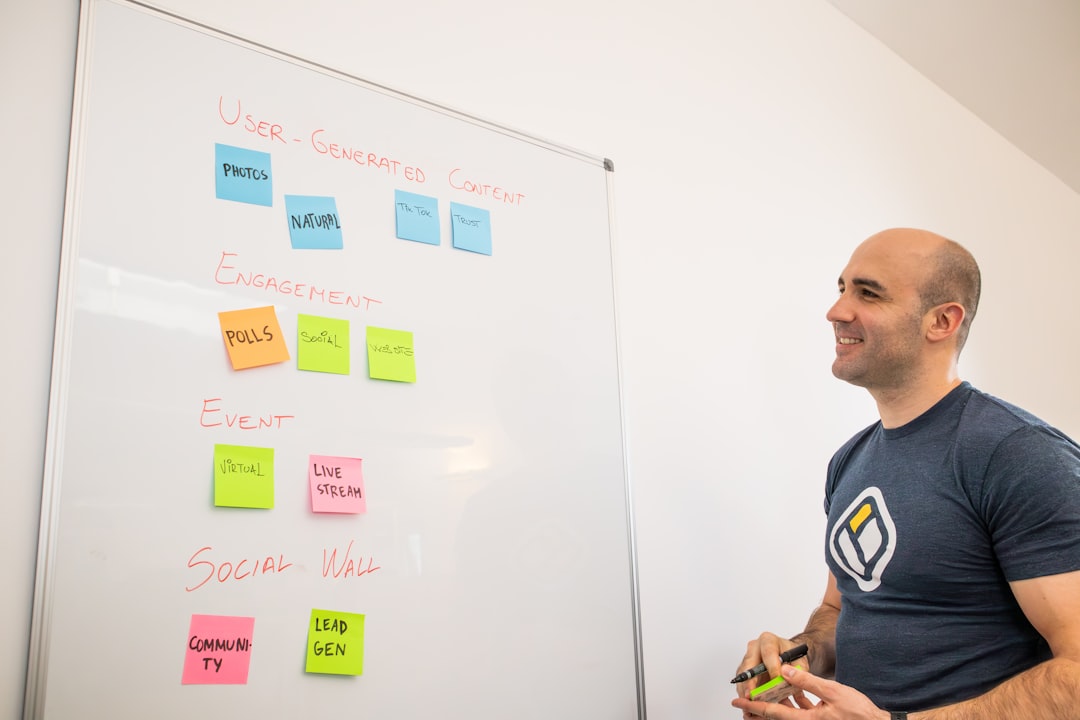
  • Restaurant Website Design with Bootstrap 5 — Full Tutorial

    Restaurant Website Design with Bootstrap 5 — Full Tutorial

    Key Takeaways

    • Bootstrap 5’s grid system and utility classes give you a fast, mobile-first foundation for a professional restaurant website without writing excessive custom CSS.
    • The Canvas HTML Template extends Bootstrap 5 with prebuilt sections, components, and CSS variables that dramatically accelerate restaurant site builds.
    • Key restaurant website sections — hero, menu, gallery, reservations, and location — each have distinct layout and UX requirements that Bootstrap handles cleanly when structured correctly.
    • Using CSS custom properties alongside Canvas variables keeps your brand colours and typography consistent across every section without repetitive overrides.

    Why Bootstrap 5 Is a Strong Choice for Restaurant Websites

    Restaurant websites have a specific set of requirements: they need to load fast on mobile (most bookings happen on phones), display food photography beautifully, and make core actions — viewing the menu, making a reservation, finding the address — effortless. Bootstrap 5 addresses all three through its mobile-first grid, responsive image utilities, and flexible component library.

    The removal of jQuery in Bootstrap 5 also means leaner JavaScript, which contributes directly to faster page loads — a ranking factor that matters when local diners are searching for somewhere to eat tonight. Paired with the Canvas HTML Template and Canvas Builder, you can generate production-ready layout scaffolding in minutes rather than hours.

    If you are deciding between a single-page and multi-page structure for your restaurant site, the post on Canvas One Page Demo vs Multi-Page: When to Use Each Format covers the trade-offs in useful detail.

    Project Structure and Canvas Setup

    Start with Canvas’s standard file structure. Your root directory should include style.css, css/font-icons.css, js/plugins.min.js, and js/functions.bundle.js. Never load Bootstrap from a CDN separately — Canvas bundles Bootstrap 5 internally, so a separate CDN import will cause conflicts.

    A clean base HTML shell for a restaurant page looks like this:

    <!DOCTYPE html>
    <html lang="en">
    <head>
      <meta charset="UTF-8">
      <meta name="viewport" content="width=device-width, initial-scale=1">
      <title>Ember & Oak — Modern Grill</title>
      <link rel="stylesheet" href="css/font-icons.css">
      <link rel="stylesheet" href="style.css">
      <style>
        :root {
          --cnvs-themecolor: #c0392b;
          --cnvs-primary-font: 'Playfair Display', serif;
          --cnvs-secondary-font: 'Inter', sans-serif;
          --cnvs-logo-height: 52px;
          --cnvs-logo-height-sticky: 40px;
        }
      </style>
    </head>
    <body>
      <!-- header, sections, footer go here -->
      <script src="js/plugins.min.js"></script>
      <script src="js/functions.bundle.js"></script>
    </body>
    </html>

    Notice that –cnvs-themecolor sets the brand accent (a deep restaurant red in this case), and logo sizing is handled entirely through –cnvs-logo-height and –cnvs-logo-height-sticky — not by targeting #logo img directly.

    Hero Section: Full-Bleed Food Photography

    The hero is the most conversion-critical section on a restaurant site. A full-bleed background image with an overlay, a short headline, and two clear CTAs (View Menu, Book a Table) is the proven pattern. Bootstrap’s position utilities and Canvas’s section classes make this straightforward:

    <section class="section py-0 min-vh-75 d-flex align-items-center"
             style="background: url('images/hero-grill.jpg') center/cover no-repeat;">
      <div class="overlay" style="background: rgba(0,0,0,0.52);"></div>
      <div class="container position-relative text-white text-center">
        <h1 class="display-3 fw-bold mb-3">Fire-Kissed Flavour,<br>Every Evening</h1>
        <p class="lead mb-5">Open Tuesday to Sunday, 5 pm — 11 pm</p>
        <a href="#menu" class="btn btn-lg me-3"
           style="background-color: var(--cnvs-themecolor); border:none; color:#fff;">
          View Menu
        </a>
        <a href="#reservations" class="btn btn-lg btn-outline-light">
          Book a Table
        </a>
      </div>
    </section>

    The min-vh-75 class ensures the hero occupies at least 75% of the viewport on every screen size. Using var(--cnvs-themecolor) on the primary button keeps the brand colour consistent without hardcoding a hex value in multiple places.

    Restaurant menus on the web fail most often because of poor information hierarchy. A two-column card grid on desktop that collapses to a single column on mobile is the correct starting point. Bootstrap’s col-md-6 and col-lg-4 modifiers handle this without a single media query in your custom CSS.

    <section id="menu" class="section">
      <div class="container">
        <div class="row justify-content-center mb-5">
          <div class="col-lg-6 text-center">
            <h2 class="mb-2">Our Menu</h2>
            <p class="text-muted">Seasonal ingredients, prepared simply and well.</p>
          </div>
        </div>
        <div class="row g-4">
          <div class="col-md-6 col-lg-4">
            <div class="card border-0 shadow-sm h-100">
              <img src="images/ribeye.jpg" class="card-img-top" alt="Dry-Aged Ribeye">
              <div class="card-body">
                <div class="d-flex justify-content-between align-items-start">
                  <h5 class="card-title mb-1">Dry-Aged Ribeye</h5>
                  <span class="fw-bold" style="color: var(--cnvs-themecolor);">$48</span>
                </div>
                <p class="card-text text-muted small">
                  28-day aged, served with truffle butter and roasted heritage carrots.
                </p>
              </div>
            </div>
          </div>
          <!-- Repeat .col-md-6.col-lg-4 blocks for additional dishes -->
        </div>
      </div>
    </section>

    The g-4 gutter class on the row provides consistent spacing between cards. Using Bootstrap’s shadow-sm and border-0 keeps cards clean without heavy styling. For more complex image-heavy layouts, the CSS Box Shadow Generator lets you dial in the exact shadow depth before committing it to your stylesheet.

    Reservations and Contact: Converting Intent into Bookings

    A reservation form needs to be short, clear, and reassuring. Date, time, party size, name, and phone number are the only fields that matter at this stage. Everything else creates friction. Use Bootstrap’s form-control and form-select classes for consistent styling, and wrap the form in a row with a location/map column beside it on larger screens:

    <section id="reservations" class="section bg-light">
      <div class="container">
        <div class="row g-5 align-items-center">
          <div class="col-lg-6">
            <h2 class="mb-4">Reserve Your Table</h2>
            <form>
              <div class="row g-3">
                <div class="col-sm-6">
                  <label class="form-label">Full Name</label>
                  <input type="text" class="form-control" placeholder="Jane Smith">
                </div>
                <div class="col-sm-6">
                  <label class="form-label">Phone</label>
                  <input type="tel" class="form-control" placeholder="+1 555 000 0000">
                </div>
                <div class="col-sm-6">
                  <label class="form-label">Date</label>
                  <input type="date" class="form-control">
                </div>
                <div class="col-sm-6">
                  <label class="form-label">Guests</label>
                  <select class="form-select">
                    <option>1</option>
                    <option>2</option>
                    <option>3–4</option>
                    <option>5+</option>
                  </select>
                </div>
                <div class="col-12">
                  <button type="submit" class="btn w-100 py-3 fw-semibold text-white"
                          style="background-color: var(--cnvs-themecolor);">
                    Confirm Reservation
                  </button>
                </div>
              </div>
            </form>
          </div>
          <div class="col-lg-6">
            <iframe
              src="https://www.google.com/maps/embed?pb=!1m18!..."
              width="100%" height="380"
              style="border:0; border-radius: 12px;"
              allowfullscreen loading="lazy">
            </iframe>
          </div>
        </div>
      </div>
    </section>

    The two-column layout — form on the left, embedded map on the right — is a high-performing pattern for local businesses because it satisfies both conversion intent and location discovery in one section. For similar food-sector project approaches, the post on How to Design a Meal Kit Subscription Website with Canvas shows how these section patterns adapt across food industry niches.

    Performance and SEO: Finishing Touches That Matter in 2025

    A technically sound restaurant site needs a few non-negotiable finishing touches before launch:

    1. Lazy-load all food images using loading="lazy" on every <img> tag below the fold. This alone can cut initial page load time significantly on image-heavy menu sections.
    2. Add structured data (JSON-LD) with @type: Restaurant so Google can display opening hours, cuisine type, and star ratings directly in search results.
    3. Use descriptive alt text on every food image — “dry-aged ribeye with truffle butter” outperforms “dish1.jpg” for both accessibility and image search.
    4. Compress images to WebP format. A hero image at 2500px wide should weigh under 200 KB in WebP with quality set to 80.
    5. Set a canonical URL if your menu is accessible from multiple paths, to avoid duplicate content penalties.

    The Food Tech Website Design Trends and Best Practices for 2026 post covers how performance expectations for food-sector sites continue to rise alongside mobile usage, which makes these optimisations non-optional for competitive local search.

    Frequently Asked Questions

    Do I need to know Bootstrap 5 in depth to build a restaurant site with Canvas?

    No. Canvas abstracts most of Bootstrap 5’s complexity into prebuilt section types and Canvas-specific utility classes. A working knowledge of Bootstrap’s grid system — rows, columns, and responsive Bootstrap breakpoint tester modifiers — is sufficient for most restaurant site builds.

    Which Canvas section type is best for a restaurant website?

    A singlepage section type works well for most restaurant sites — it keeps the header, hero, menu, reservations, and footer in a single scrollable experience that converts well on mobile. If the restaurant has multiple locations or a large menu, a fullpage_layout with internal navigation may be more appropriate.

    How do I change the theme colour across the entire site without editing every element?

    Set –cnvs-themecolor once in the :root block of your stylesheet. Every Canvas component and any custom elements that reference var(--cnvs-themecolor) will update automatically. This is far more maintainable than hardcoding a hex value repeatedly.

    Can I add an online ordering system or booking widget to a Bootstrap 5 restaurant site?

    Yes. Third-party booking platforms like OpenTable or Resy provide embeddable iframes or JavaScript widgets that integrate cleanly into any Bootstrap 5 layout. Place the widget code inside a standard Bootstrap container and grid column to ensure it remains responsive.

    What is the recommended image format for restaurant food photography on a Canvas site?

    WebP is the recommended format in 2025 for its combination of quality and file size. Use a <picture> element with a WebP source and a JPEG fallback for older browsers. Hero images should be compressed to under 200 KB and all below-fold images should carry the loading="lazy" attribute.

    If you’re working with the Canvas HTML Template and want to generate production-ready layouts faster, try Canvas Builder free and see how much time you save on every project.

  • App Download Landing Page: Getting Users to Tap Install

    App Download Landing Page: Getting Users to Tap Install

    An app download landing page has one job: get the visitor to tap or click install before they scroll away, get distracted, or talk themselves out of it. Most pages fail that job because they borrow the structure of a marketing brochure instead of designing around the moment of decision.

    Key Takeaways

    • A high-converting app download landing page leads with a single, device-specific call to action above the fold — everything else is supporting evidence.
    • Social proof, app store ratings, and screenshot carousels reduce friction and build the confidence users need before they commit to an install.
    • The Canvas HTML Template gives you a production-ready foundation for mobile app landing pages without building component by component from scratch.
    • Page speed and mobile responsiveness are not optional — app users are already on their phones, and a slow or broken page will cost you the install.

    What Belongs Above the Fold

    The first screenful of your app landing page determines whether the visitor stays or bounces. For an app download landing page, the above-the-fold area needs to answer three questions instantly: what does this app do, who is it for, and where can I get it?

    That means your hero section needs a concise headline (not a tagline — a plain-language description of the core benefit), a supporting subheading that adds one layer of context, a rendered phone mockup or short looping video, and your App Store and Google Play badge links. Nothing else belongs here. Navigation menus, feature grids, and testimonials carousels all belong below the fold where they serve as supporting evidence after the visitor has decided they are interested.

    Using Canvas, a Bootstrap 5 hero section with stacked CTA badges looks like this:

    <section id="hero" class="py-6 bg-light">
      <div class="container">
        <div class="row align-items-center">
          <div class="col-lg-6">
            <h2 class="display-4 fw-bold mb-3">Track Every Run. Own Every Goal.</h2>
            <p class="lead mb-4">Pace Pro gives runners real-time coaching, personalised training plans, and race-day insights — all in one app.</p>
            <div class="d-flex flex-wrap gap-3">
              <a href="#ios-link" class="button button-rounded button-large">
                <i class="fa-brands fa-apple me-2"></i>App Store
              </a>
              <a href="#android-link" class="button button-rounded button-large button-border">
                <i class="fa-brands fa-google-play me-2"></i>Google Play
              </a>
            </div>
          </div>
          <div class="col-lg-6 text-center mt-5 mt-lg-0">
            <img src="images/app-mockup.png" alt="Pace Pro app screenshot" class="img-fluid">
          </div>
        </div>
      </div>
    </section>
    the best way to build web apps without code
    Photo by Team Nocoloco on Unsplash

    Presenting Features Without Overwhelming Visitors

    Feature sections are where most app landing page designs go wrong. Developers list every capability the app has. Users only care about the three or four things that are relevant to the problem they are trying to solve. The rule for 2025 and beyond is simple: lead with outcomes, not features.

    Instead of “Advanced route mapping algorithm,” write “Never get lost on a trail again.” Instead of “Biometric data integration,” write “See your heart rate, pace, and elevation in one glance.” Each feature point should map to a specific frustration or desire your target user already has.

    Structurally, a three-column icon grid using Bootstrap 5 works well here. Keep each item to one icon, one short headline, and two sentences maximum:

    <section id="features" class="py-6">
      <div class="container">
        <div class="row g-4 text-center">
          <div class="col-md-4">
            <div class="feature-box">
              <i class="bi bi-lightning-charge fs-1 text-primary mb-3 d-block"></i>
              <h3 class="h5 fw-semibold">Real-Time Coaching</h3>
              <p class="text-muted">Audio cues and pace alerts keep you on target without ever glancing at your screen.</p>
            </div>
          </div>
          <div class="col-md-4">
            <div class="feature-box">
              <i class="bi bi-calendar-check fs-1 text-primary mb-3 d-block"></i>
              <h3 class="h5 fw-semibold">Personalised Plans</h3>
              <p class="text-muted">Training schedules built around your goal race, current fitness level, and available days.</p>
            </div>
          </div>
          <div class="col-md-4">
            <div class="feature-box">
              <i class="bi bi-bar-chart-line fs-1 text-primary mb-3 d-block"></i>
              <h3 class="h5 fw-semibold">Race-Day Insights</h3>
              <p class="text-muted">Post-run breakdowns that tell you exactly where you gained or lost time.</p>
            </div>
          </div>
        </div>
      </div>
    </section>

    If your app has more than six key features, consider a tabbed layout or a scrolling alternating-row section rather than expanding the grid. The 10 Canvas HTML Template sections every landing page needs post covers alternating feature rows in more detail.

    App screenshots are your most persuasive selling tool because they show, rather than tell. A well-structured screenshot Bootstrap carousel lets visitors mentally place themselves inside the app before they download it. The goal is to reduce the uncertainty that stops someone tapping install.

    Canvas includes multiple slider and carousel components. For a mobile app HTML template context, a horizontal scrolling screenshot strip inside phone frame mockups works better than a full-width hero slider. Keep autoplay off or set a slow interval — forcing users through slides at pace feels patronising. For guidance on choosing the right carousel style for your layout, the Canvas Slider and Carousel Components guide is worth reading before you decide.

    One practical tip: order your screenshots by the user journey, not by what looks impressive in isolation. Show the onboarding screen, then the core dashboard, then a results or achievement screen. That narrative arc mirrors the experience the visitor is about to have, which makes the decision to install feel less like a leap of faith.

    a hand holding a game controller
    Photo by Egor Komarov on Unsplash

    Social Proof: Ratings, Reviews, and Download Numbers

    Social proof on an app landing page works differently from an agency portfolio or SaaS homepage. Visitors are not evaluating your company — they are assessing whether this specific app is worth the storage space and the learning curve. That means your social proof needs to be app-centric and specific.

    The most effective elements to include, in rough order of impact, are:

    1. App store star rating displayed as a visual star row with the review count alongside it
    2. Short user quotes that mention a specific outcome (“I knocked four minutes off my 10k in six weeks”)
    3. Download milestone if you have reached a round number worth stating (100,000+ downloads)
    4. Press mentions if relevant publications have covered the app

    Avoid generic testimonials like “Great app, highly recommend.” They add length without adding credibility. If your user reviews are thin, focus on the star rating and a single strong quote rather than padding with weak ones. The same principle applies to any conversion-focused page — a point covered in depth in the post on SaaS website design and B2B homepage conversion.

    Mobile Performance and Page Speed

    The users visiting your app download landing page are disproportionately on mobile devices. A page that loads slowly on a 4G connection will bleed installs. Canvas is built on Bootstrap 5 and loads efficiently, but the assets you add on top of the template — particularly phone mockup images and looping video backgrounds — can erode that performance quickly.

    Practical steps to keep your page fast:

    • Export phone mockup images as WebP with a maximum width of 600px at 2x — they will look sharp on retina displays without being oversized
    • Load Canvas JS files js/plugins.min.js and js/functions.bundle.js at the bottom of the body, never in the head
    • Defer any third-party analytics scripts so they do not block the first contentful paint
    • Use the loading="lazy" attribute on all below-the-fold images
    • Test your page with Google PageSpeed Insights and target a mobile score above 85 before launch

    Canvas’s CSS variables generator also let you make global style changes with a single declaration. Swapping the theme colour for your brand colour is a one-line change that keeps your page feeling native to your app’s visual identity:

    :root {
      --cnvs-themecolor: #e8431a;
      --cnvs-themecolor-rgb: 232, 67, 26;
    }

    CTA Placement: Repeat the Install Button at the Right Moments

    A single CTA at the top of the page is not enough for visitors who scroll through your full content before deciding. The principle of progressive commitment means that some visitors need to read the features section, scan the reviews, and see the screenshots before they are ready to act. If your download button only appears in the hero, those visitors reach the bottom of the page with no obvious next step.

    Place your App Store and Google Play buttons in at least three locations: the hero section, immediately after the screenshot carousel or social proof block, and in the footer. If your page is long, consider a sticky bottom bar on mobile that stays visible as the user scrolls. This is especially effective for app landing pages because the action — tapping a store badge — is a single tap that takes seconds, unlike a form submission.

    Keep the button copy consistent and action-oriented. “Download Free” outperforms “Get the App” because it answers the implicit question “will this cost me anything?” before the visitor has to ask. Small copy decisions at the CTA level have measurable effects on conversion rates, and this applies whether you are building an app landing page, an agency portfolio, or any other conversion-focused page.

    Frequently Asked Questions

    Should an app download landing page link to both the App Store and Google Play?

    Yes, unless your app is genuinely platform-exclusive. Show both badges prominently and use device detection if you want to surface the relevant store first — but always keep both visible so users on the other platform are not excluded.

    How long should an app landing page be?

    Long enough to answer every objection a first-time visitor might have, and no longer. For most apps, that means a hero, a feature section, a screenshot carousel, social proof, and a closing CTA — roughly four to six sections on a single-page layout. Avoid padding the page with content that does not serve the install decision.

    Is Canvas HTML Template suitable for a mobile app landing page?

    Yes. Canvas includes app-focused demo layouts and all the component types you need — hero sections, icon grids, carousels, testimonial blocks, and CTA rows. Because it is built on Bootstrap 5, everything is responsive by default, which matters significantly for a page primarily viewed on mobile devices.

    What is the best way to show app screenshots on a landing page?

    Wrap screenshots in device frame mockups and present them in a horizontally scrollable carousel or a static three-up row. Order them to follow the user journey from onboarding to core feature to outcome, rather than selecting screens based purely on visual appeal.

    How do I track installs driven by my landing page?

    Use UTM parameters on your App Store and Google Play links so you can attribute installs to your landing page traffic in analytics. Both platforms also support custom referral tracking through their respective developer consoles, which gives you more granular data on which page sections drove the most clicks.

    If you’re working with the Canvas HTML Template and want to generate production-ready layouts faster, try Canvas Builder free and see how much time you save on every project.