Tag: AI prompt web design

  • 5 Types of AI Prompts That Generate the Best HTML Layouts

    5 Types of AI Prompts That Generate the Best HTML Layouts

    Most people get mediocre AI-generated layouts because their prompt says “make me a nice website” and nothing else. The prompts that produce usable, production-ready HTML follow a handful of repeatable patterns, and each one solves a different problem.

    Key Takeaways

    • Specify the output type (single page, reusable block, or multi-page layout) before you describe anything else.
    • Constrain brand decisions with real values: hex codes, font names, and Canvas variables like --cnvs-themecolor.
    • Supply audience, offer, and real copy so the model stops inventing generic filler.
    • Treat generation as a loop: build broad, then refine with short, targeted edit prompts.

    1. Structural Prompts: Define the Skeleton First

    A structural prompt tells the generator what sections exist and in what order. Without it, the model guesses, and it almost always guesses “hero, three features, testimonial, footer” regardless of your business. In Canvas Builder, this also means choosing the right output type: single_page for one complete page, block_section for one reusable component, or full_page_layout for a multi-page niche demo.

    Create a single_page layout for a boutique accounting firm.
    Section order: sticky header with CTA button, split hero (text left,
    image right), 3-column services grid, 4-step process timeline,
    pricing table with 3 tiers, FAQ accordion, contact form, footer
    with 4 columns.

    Numbers matter here. “3-column services grid” and “4-step process” give the model hard constraints, which maps cleanly onto Bootstrap 5 grid classes such as col-lg-4. If you are unsure how many columns your content needs, the Bootstrap Grid Calculator helps you decide before you write the prompt.

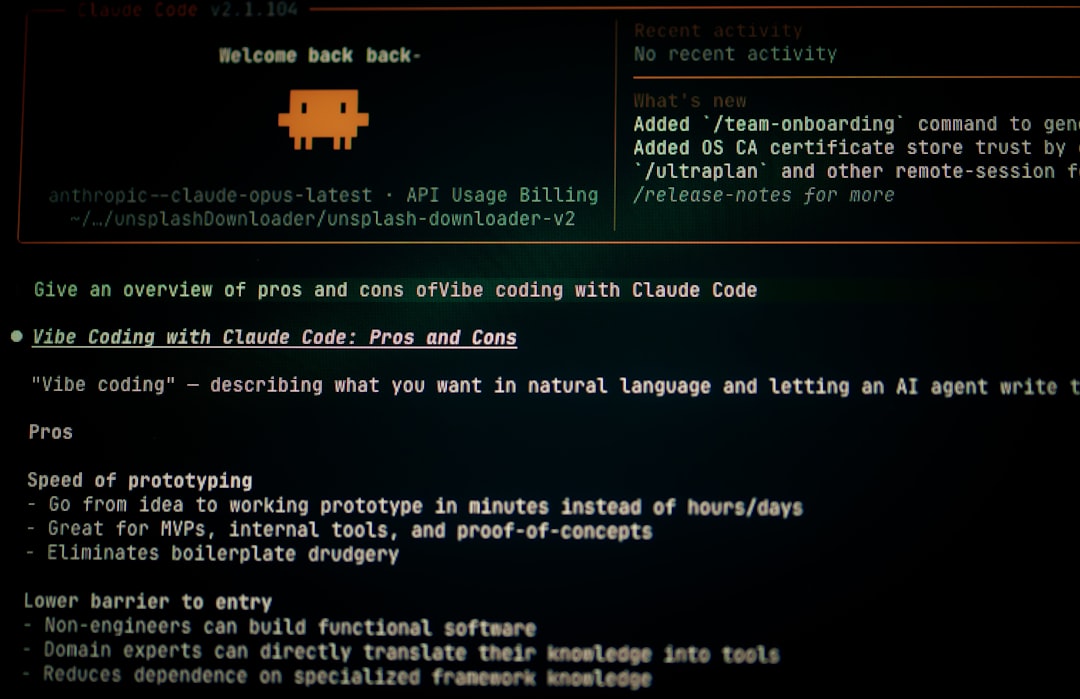
    5 Types of AI Prompts That Generate the Best HTML Layouts, abstract concept illustration

    2. Brand and Style Prompts: Lock Down Visual Decisions

    Style prompts replace adjectives with values. “Modern and clean” means nothing to a generator. “#0f766e accent, Inter for body, 8px radius, generous whitespace” is something it can execute. If you build on the Canvas HTML Template, name the variables you want set. Canvas is themed through CSS custom properties rather than scattered overrides, so specifying them directly saves you a cleanup pass later.

    Brand: deep teal accent #0f766e, dark navy headings, off-white
    backgrounds. Use Inter for body and Poppins for headings.
    Buttons have 8px radius. Keep the header transparent over the hero
    and solid white when sticky.

    A good generator should translate that into variables like these:

    :root {
      --cnvs-themecolor: #0f766e;
      --cnvs-themecolor-rgb: 15, 118, 110;
      --cnvs-primary-font: "Inter", sans-serif;
      --cnvs-secondary-font: "Poppins", sans-serif;
      --cnvs-header-bg: transparent;
      --cnvs-header-sticky-bg: #ffffff;
    }

    Note that --cnvs-themecolor-rgb must match the hex value, since Canvas uses it for translucent tints. Mention logo size separately: Canvas controls it with --cnvs-logo-height and --cnvs-logo-height-sticky, so ask for those values rather than custom rules on the logo image.

    3. Content-Context Prompts: Feed It Real Information

    This is the biggest quality lever. A context prompt supplies audience, offer, tone, and actual copy. The model then writes headlines that fit your business instead of “Welcome to our website.”

    Business: mobile dog grooming in Austin, TX. Audience: busy
    professionals with anxious dogs. Offer: first visit 20% off.
    Tone: warm, reassuring, no jargon. Headline idea: "Grooming that
    comes to your driveway." Include trust signals: 4.9 rating from
    312 reviews, fully insured, 9 years in business.

    Specific numbers like the review count give the generator something concrete to place in a stats strip or testimonial block. For more niche-specific examples, see our guide to AI web design prompts for niche websites. If you struggle to organise this information, the AI Prompt Helper structures it for you.

    html generator prompts, abstract technical diagram

    4. Component Prompts: Build One Block Perfectly

    Rather than generating a whole page, request a single block_section. This is the right move when you already have a page and need one pricing table, one hero, or one testimonial slider. Narrow scope means the model can spend its effort on detail: spacing, responsive behaviour, and interactive states.

    Create a block_section: a hero with a headline, one-sentence
    subhead, two buttons (primary and outline), and a trust row of
    5 client logos beneath. Stack vertically on mobile. Left-aligned
    text on desktop, max width 640px.

    The output should resemble clean, Bootstrap-native markup:

    <section class="py-6">
      <div class="container">
        <div class="row">
          <div class="col-lg-8">
            <h1 class="display-4 fw-bold">Grooming that comes to your driveway</h1>
            <p class="lead mb-4">Stress-free appointments for anxious dogs.</p>
            <a href="#book" class="button button-large">Book a visit</a>
            <a href="#pricing" class="button button-large button-border">See pricing</a>
          </div>
        </div>
      </div>
    </section>

    For hero-specific inspiration, compare your result against these hero section designs that convert.

    5. Iterative Edit Prompts: Refine, Do Not Restart

    Once a layout is 80% right, regenerating from scratch throws away what worked. Short, surgical prompts change one thing at a time:

    1. “Make the services grid 4 columns on desktop and 2 on tablet.”
    2. “Swap the testimonial carousel for a 3-card static row.”
    3. “Shorten the hero headline to under 8 words.”
    4. “Add a sticky mobile CTA bar at the bottom.”

    Avoid stacking six changes in one message. Results get unpredictable fast. Our walkthrough of AI edit mode shows how this loop works in practice.

    Combining the Five Types: A Practical Workflow

    Each type is a layer, not an alternative. A reliable sequence looks like this:

    Step Prompt type Goal
    1 Content-context Establish audience, offer, real copy
    2 Structural Lock section order and output type
    3 Brand and style Set colours, fonts, header behaviour
    4 Component Perfect high-impact blocks like the hero
    5 Iterative edit Polish spacing, copy length, responsiveness

    When not to over-prompt: for a quick internal prototype, a structural prompt alone is often enough. Heavy brand and content prompting pays off on client-facing or conversion-critical pages. Also keep in mind that AI output still needs a human review for accessibility, factual accuracy, and real image assets.

    Frequently Asked Questions

    How long should an AI prompt for an HTML layout be?

    Between 60 and 150 words works best for a full page. Shorter prompts leave too much to guesswork, while very long ones can contradict themselves. For single components, 30 to 60 words is usually enough.

    Should I mention Bootstrap in my prompt?

    If you use a Bootstrap-based tool, you rarely need to. Canvas already bundles Bootstrap 5, so never ask the generator to add a Bootstrap CDN link. Describe layout behaviour instead, such as “3 columns on desktop, stacked on mobile.”

    What is the difference between a single_page and a block_section prompt?

    A single_page prompt generates a complete page with header, hero, sections, and footer. A block_section prompt generates one reusable component, such as a pricing table, which you can drop into an existing page.

    Why does the AI keep producing generic copy?

    Generic output almost always comes from missing context. Add your audience, a concrete offer, a tone, and at least two real facts such as years in business or a customer count.

    Can I change brand colours after the layout is generated?

    Yes. In Canvas, update --cnvs-themecolor and its matching --cnvs-themecolor-rgb value in your CSS, or send an edit prompt asking for the new hex code. Both approaches update accents site-wide.

    If you’re working with the Canvas HTML Template and want to generate production-ready layouts faster, try Canvas Builder free and see how much time you save on every project.

  • Writing AI Prompts for Web Design: Tips to Get Better Layouts Faster

    Writing AI Prompts for Web Design: Tips to Get Better Layouts Faster

    Most AI-generated web layouts disappoint not because the AI is bad at HTML, but because the prompt that drove it was too vague to produce anything useful. The gap between “make me a landing page” and a production-ready section with correct Bootstrap 5 classes, Canvas variables, and real content is entirely closed by how precisely you write your instructions.

    Why Vague Prompts Fail Every Time

    When you ask an AI to “generate a hero section,” it makes a dozen silent assumptions: which framework, which breakpoints, which heading hierarchy, which image ratio, which button style. Each assumption is a coin flip. The result is technically valid HTML that fits nothing in your actual project.

    The root problem is that AI tools optimise for completion, not fit. They will always return something, and that something will look plausible. The only way to steer output toward genuinely usable code is to eliminate those silent assumptions by stating your constraints explicitly.

    In the context of Canvas and Bootstrap 5 projects, this matters even more. Canvas has its own CSS variable layer on top of Bootstrap. If you ask a generic AI tool for a “Bootstrap hero,” it may reference --bs-primary or reach for a Bootstrap CDN link, both of which conflict with Canvas’s bundled setup. Your prompt needs to specify the environment, not just the output shape.

    a cell phone with an advertisement on the back of it
    Photo by Mockup Free on Unsplash

    Anatomy of a Strong AI Prompt for Web Design

    A reliable AI prompt for a web layout has five components, each one narrowing the solution space:

    1. Context: What template, framework, or system the code must work inside (e.g. Canvas HTML Template, Bootstrap 5 bundled, no third-party CDN)
    2. Section type: Whether you need a hero, features grid, testimonials block, pricing table, or footer
    3. Grid specification: Column count, breakpoints, and nesting (e.g. “a 3-column Bootstrap grid that stacks to 1 column on mobile”)
    4. Content placeholders: Real or representative text, image dimensions, icon style (e.g. “3 feature cards, each with a 48×48 SVG icon, an H3 heading of 5-7 words, and 2 sentences of body text”)
    5. Style constraints: Canvas CSS variables to apply, spacing classes, and any component-specific requirements

    Here is an example of a weak prompt versus a strong one for the same section:

    Weak: “Write a features section with Bootstrap.”

    Strong: “Write a Canvas HTML Template features section using Bootstrap 5 (bundled, no CDN). Use a .container with a 3-column .row using col-lg-4 col-md-6. Each column is a card with class card h-100 p-4 border-0 shadow-sm. Include a 48×48 inline SVG placeholder icon, an H3 heading, and a short paragraph. Apply –cnvs-themecolor to the icon fill. No JavaScript required.”

    The second prompt eliminates guesswork about framework version, layout, spacing, and theming in one pass.

    Canvas-Specific Variables and Classes to Include in Your Prompts

    One of the fastest ways to improve AI output quality for Canvas projects is to paste the correct variable names directly into your prompt. When the AI sees real token names, it uses them rather than inventing alternatives.

    The most useful Canvas CSS variables to reference in prompts are:

    • –cnvs-themecolor for primary brand colour fills, borders, and accents
    • –cnvs-themecolor-rgb for rgba() transparency effects on backgrounds and overlays
    • –cnvs-primary-font and –cnvs-secondary-font for typography overrides
    • –cnvs-header-bg and –cnvs-header-sticky-bg when prompting header variants
    • –cnvs-logo-height and –cnvs-logo-height-sticky for logo sizing (never target #logo img directly)

    A practical prompt fragment might read: “Style the section background using rgba(var(--cnvs-themecolor-rgb), 0.08) to create a tinted panel without overriding the theme colour.” That single instruction produces correctly scoped CSS the AI would never guess on its own.

    Here is a working example of a Canvas-compatible feature card that you could ask an AI to extend or replicate across a full section:

    <div class="col-lg-4 col-md-6 mb-4">
      <div class="card h-100 p-4 border-0 shadow-sm">
        <div class="mb-3">
          <svg width="48" height="48" viewBox="0 0 48 48" fill="none"
               xmlns="http://www.w3.org/2000/svg">
            <circle cx="24" cy="24" r="24"
                    fill="rgba(var(--cnvs-themecolor-rgb), 0.12)"/>
            <path d="M16 24l6 6 10-12"
                  stroke="var(--cnvs-themecolor)"
                  stroke-width="2.5"
                  stroke-linecap="round"
                  stroke-linejoin="round"/>
          </svg>
        </div>
        <h3 class="h5 fw-semibold mb-2">Feature Heading Here</h3>
        <p class="text-muted mb-0">
          A concise two-sentence description of this feature
          and its primary benefit to the user.
        </p>
      </div>
    </div>

    When you include a snippet like this as a “template card” in your prompt, you are giving the AI a concrete pattern to replicate rather than asking it to invent one. Output quality improves dramatically because the structural and styling decisions are already made.

    Computer screen displaying code and text
    Photo by Bernd 📷 Dittrich on Unsplash

    Layering Prompts for Complex Layouts

    Complex layouts, like a full landing page for a lead generation campaign or a multi-section product page, should never be requested in one prompt. Instead, use a layered approach across three passes:

    1. Pass 1 – Structure: Ask for the HTML skeleton only, with correct section tags, container/row/col classes, and ID attributes. No inline styles, no content.
    2. Pass 2 – Content: Ask the AI to populate each section with realistic placeholder text, image dimensions, and icon references, referencing the skeleton from Pass 1.
    3. Pass 3 – Style: Ask for a targeted CSS block that applies Canvas variables, custom spacing, and any component-specific overrides. Specify that Bootstrap’s bundled JS (js/functions.bundle.js and js/plugins.min.js) handles interactivity, so no extra script tags are needed.

    This workflow mirrors how an experienced developer actually builds layouts, and it keeps each AI response focused enough to be reviewable in under two minutes. It also makes iteration faster: if the content in Pass 2 is wrong, you fix one pass, not a monolithic blob of mixed HTML and CSS.

    For teams building niche demo pages, such as a newsletter landing page or a service-specific microsite, the layered approach also makes it easier to hand off sections to other team members without context loss.

    Common Prompt Mistakes and How to Fix Them

    Even experienced developers make predictable mistakes when prompting AI for layout code. The most costly ones in 2025 are:

    • Asking for “Bootstrap” without specifying Bootstrap 5: You will often get Bootstrap 4 class names like ml-auto instead of ms-auto, which break silently in Canvas.
    • Not specifying Canvas JS files: The AI may add a CDN script tag for Bootstrap JS. Canvas bundles its JS in js/plugins.min.js and js/functions.bundle.js. Adding a second Bootstrap JS bundle causes conflicts.
    • Omitting responsive behaviour: Always state the breakpoint behaviour explicitly (e.g. “col-lg-3 col-md-6 col-12”) or the AI defaults to desktop-only layouts.
    • Requesting colour values instead of variables: Hardcoding #e84040 instead of var(--cnvs-themecolor) means every global theme change breaks the component.
    • No section context: Saying “write a card” without specifying whether it sits inside a dark background section, a white panel, or a tinted wrapper means the AI cannot make appropriate contrast decisions.

    Fixing these is mostly a matter of building a reusable prompt template you paste at the start of every session. Keep one in a notes app or doc, update it when you discover a new Canvas variable or class pattern, and paste it before every design request.

    Using Canvas Builder to Close the Prompt Gap

    Writing precise prompts is a learnable skill, but it takes time, and even a good prompt still requires you to review, test, and adjust the output manually. Canvas Builder is designed to remove the middle steps: it understands the Canvas template’s structure natively, so it generates layouts using the correct CSS variables, Bootstrap 5 classes, and Canvas JS file references from the start.

    Instead of crafting a 200-word prompt and reviewing whether the AI remembered to use --cnvs-themecolor instead of --bs-primary, you describe the section’s purpose and Canvas Builder handles the environment constraints automatically. For agencies and freelancers managing multiple Canvas-based projects, that consistency across deliverables is worth more than the time saving alone.

    If you are comparing approaches, the detailed breakdown in Landing Page Builders vs Custom HTML is worth reading before committing to a workflow for 2025 and 2026 projects.

    Frequently Asked Questions

    What is the most important thing to include in an AI prompt for web design?

    The framework version and environment context matter most. Specify Bootstrap 5 (bundled), the template system (Canvas HTML Template), and the exact CSS variables you expect the AI to use. Without this, the AI defaults to generic assumptions that produce code requiring extensive fixes.

    Can AI tools generate Canvas-compatible HTML accurately without manual correction?

    General-purpose AI tools can get close if your prompt is detailed enough, but they do not inherently know Canvas’s variable names, JS file paths, or section types. Accuracy improves when you provide a prompt template containing the correct variable names and a reference snippet. Tools purpose-built for Canvas, like Canvas Builder, eliminate this gap entirely.

    How do I stop AI from adding Bootstrap CDN links when using Canvas?

    Explicitly state in your prompt: “Canvas HTML Template bundles Bootstrap 5 internally. Do not add any Bootstrap CDN links or script tags. The only JS files are js/plugins.min.js and js/functions.bundle.js.” Stating the constraint directly is the only reliable way to prevent the AI from adding conflicting dependencies.

    Is layering prompts (structure, content, style) always better than a single prompt?

    For sections with more than two components or any layout requiring responsive behaviour at three breakpoints, yes. Single prompts for complex layouts produce mixed outputs that are harder to review and debug. For simple elements like a single CTA button or a one-column text block, a single focused prompt is usually sufficient.

    What Canvas CSS variable controls the primary brand colour?

    The correct variable is –cnvs-themecolor. For transparency effects, use –cnvs-themecolor-rgb inside an rgba() function. Never reference –bs-primary or –color-primary in Canvas projects, as those variables are not part of Canvas’s theming system and will not respond to global theme changes.

    If you’re working with the Canvas HTML Template and want to generate production-ready layouts faster, try Canvas Builder free and see how much time you save on every project.